How to Use Expo Go: Test Your App on Your Phone
To use Expo Go, install it and scan your project's QR code: with the Camera on iPhone, inside Expo Go on Android. The project opens on your phone in a few seconds, with no store upload in between. This guide covers the install, the scan, the two errors that have their own pages in Expo's troubleshooting docs (the iPhone sign-in message and the version mismatch), and how to open an app you built in Entrobase, where no terminal is involved. Every step was checked against Expo's documentation on November 12, 2026.

By: Yunus Emre Sak
- Published:
- 11 min read

How to use Expo Go: the short version
In short
- Expo Go opens an app that is still being built on a real phone, without going through the App Store or Google Play.
- On iPhone you scan the QR code with the Camera app; on Android you scan it from inside Expo Go.
- On a physical iPhone, a project served from your computer opens only if Expo CLI and Expo Go are signed in to the same Expo account.
- Each Expo Go build supports one SDK version, so the project and the app have to match.
- Apps built in Entrobase open from the Open on your phone card and need no extra account.
Which rules apply depends on where the project lives. There are three cases.
| Where the project lives | Where the QR code is | Account needed? | Same Wi-Fi needed? |
|---|---|---|---|
| Your own computer (development server) | In the terminal, after the server starts | iPhone: yes. Android: no | Yes, or use a tunnel |
| An app you built in Entrobase | On the Open on your phone card in the Builder | No | No, the phone only needs internet |
| An Entrobase mobile template demo | On the same card on the template page | No | No |
What is Expo Go for, and how do you install it?
Expo Go is a free app that runs your project inside a ready-made shell. You skip the build and the store upload, and changes show up on the phone seconds after you make them. A preview on a laptop shows what a screen looks like. A phone tells you whether the button sits under your thumb, what happens when the keyboard opens, and how a long list scrolls.
Expo is direct about the limits. Its docs call Expo Go "a playground for students and learners to try Expo quickly" and point production apps to a development build. Use it to try things, and plan a separate build for the store.
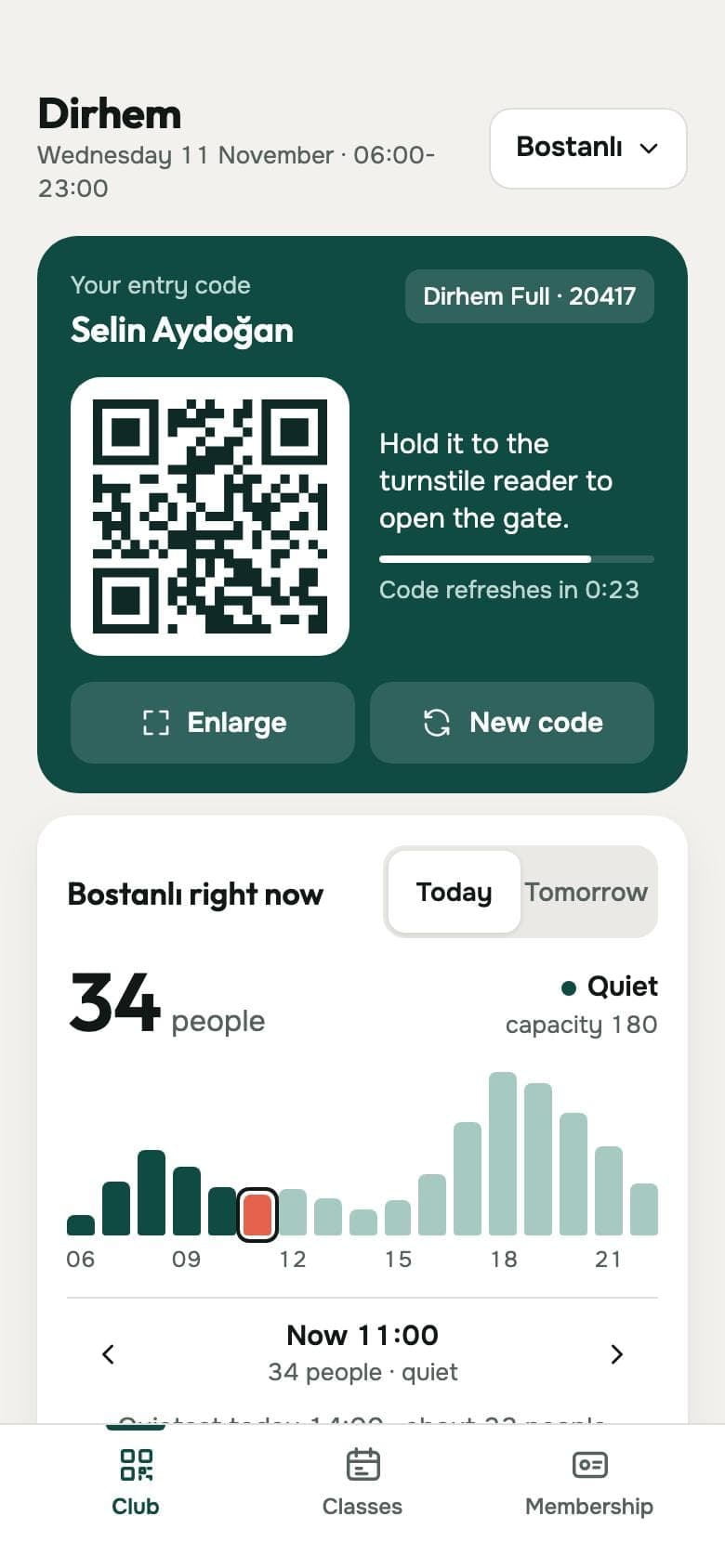
Installing Expo Go on iPhone and Android
- On Android, open Google Play, search for Expo Go and install it.
- On iPhone, open the App Store, search for Expo Go and install it. On November 12, 2026 the App Store listing shows it as free.
- If your project runs from your own computer and you test on an iPhone, create a free Expo account now. You will need it in the next section.
The store version can trail the newest SDK
Each build of Expo Go includes one Expo SDK version, and your project has to use the same one. Expo's troubleshooting page says the store builds can lag behind a new SDK release, and its May 4, 2026 changelog described an iPhone build still waiting for App Store approval with no date to give. If Expo Go says your project is incompatible, read the fixes below before you reinstall anything.
Scanning the QR code, step by step
If the project is on your computer, start the development server first:
npx expo startA QR code appears in the terminal. From here the two platforms differ.
On Android
- Open Expo Go.
- Tap Scan QR code.
- Point the camera at the code. The project loads and the app opens.
On iPhone
- Sign in first: run
npx expo loginon your computer, then tap the account icon in the top-right corner of Expo Go and sign in with the same account. - Open the iPhone's own Camera app and point it at the code.
- Tap the link that appears. Expo Go opens and loads the project.
The sign-in step applies to physical iPhones and iPads loading a project from a development server. Expo's docs say Android devices, the Android Emulator, the iOS Simulator and published updates are not affected.
Keep the phone and the computer on the same Wi-Fi network. Expo's docs note that some router setups, common on public networks, stop the connection. In that case restart the server with a tunnel and scan again:
npx expo start --tunnelReloads are considerably slower through a tunnel, so switch back once you are on a network that works.
Why won't Expo Go open my project?
| What you see | Why | What to do |
|---|---|---|
| "Project is incompatible with this version of Expo Go" | The project's SDK version and the installed Expo Go do not match | Update Expo Go from the store. If the store build is still behind your project, Expo's docs offer a matching build from expo.dev/go for Android, and the eas go command for iPhone, which needs an Apple Developer Program membership |
| "You need to be signed in to Expo Go and Expo CLI to open your project" (iPhone) | Neither side is signed in, or the two accounts differ | Run npx expo login, sign in to Expo Go with the same account, then press Try Again |
| You signed in but the error stays | Expo CLI caches the account for as long as the server process runs | Restart the development server |
| The code scans but the project never loads | Phone and computer are on different networks, or the router blocks the connection | Join the same Wi-Fi, or start the server with --tunnel |
| On Android, the phone's camera app does not open the project | On Android the code is scanned from inside Expo Go | Open Expo Go and tap Scan QR code |
One detail from Expo's sign-in page saves time: Expo CLI prints nothing about the account error. The server keeps running with no warning in the terminal, so the message only shows on the phone.
What works in Expo Go and what doesn't?
Expo Go is a pre-built app. It ships with a fixed set of native libraries, and that set cannot change after you install it. Your code runs against whatever is already inside.
Works
- Screens, tabs, lists and forms, with real scrolling, keyboard and touch.
- Live changes: an edit reaches the open app within seconds.
- Libraries whose native code is already included in Expo Go.
- In-app notifications.
Does not work
- Remote push notifications sent from a server.
- Libraries with native code that is not bundled in Expo Go.
- Your final app name, icon and splash screen; Expo Go shows an approximation.
- Android App Links and iOS Universal Links.
- Projects on a different SDK version than the installed Expo Go.
Both lists come from the FAQ in Expo's development builds docs. When your app needs something from the second list, that is the point to move to a build of your own.
Opening an app you built in Entrobase
Plenty of Expo Go users never open a terminal. Entrobase builds a mobile app from a written description, and the test step uses the same Expo Go on your phone, minus the command line.
- Open your mobile app in the Builder. The chat is on the left and a phone-frame preview is on the right.
- Find the Open on your phone card. Its QR code becomes sharp once the preview is ready.
- Scan it with the Camera on iPhone, or with Scan QR code inside Expo Go on Android.
- Your app opens. While it stays open, changes you ask for in the chat arrive within seconds on their own; if they do not, reload the app in Expo Go.
You do not need an Expo account for this, and the phone does not have to share a network with your computer, because the app is served from Entrobase and not from your machine. The code belongs to the project and never changes. Copy link on the same card lets you open the app on a second phone.
If the card shows a notice
The card can state which Expo Go version your app needs. When the store version of Expo Go moves to a new SDK, Entrobase posts a notice on the card while previews are moved over. During that window, updating Expo Go does not fix the mismatch; follow the notice.
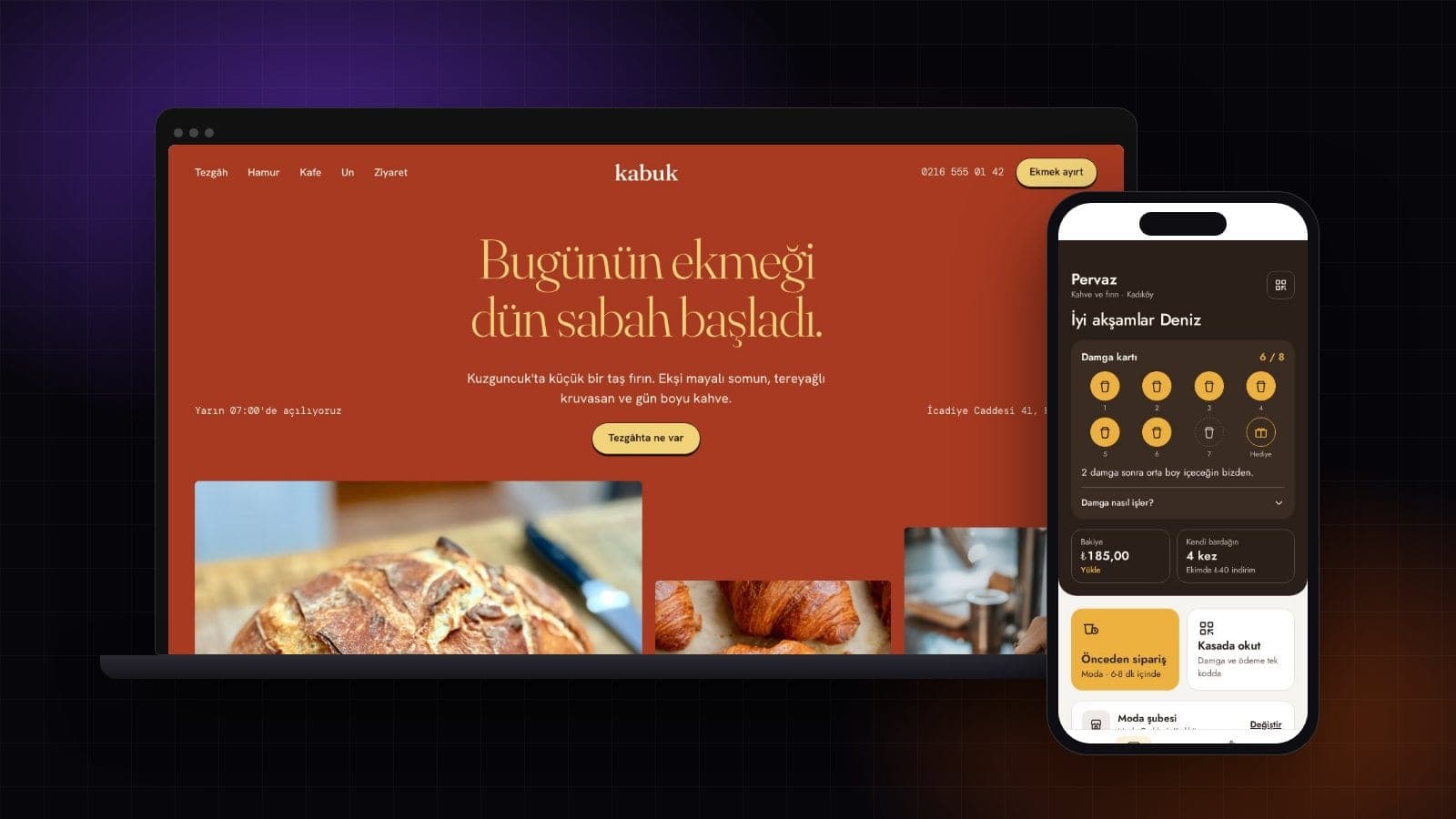
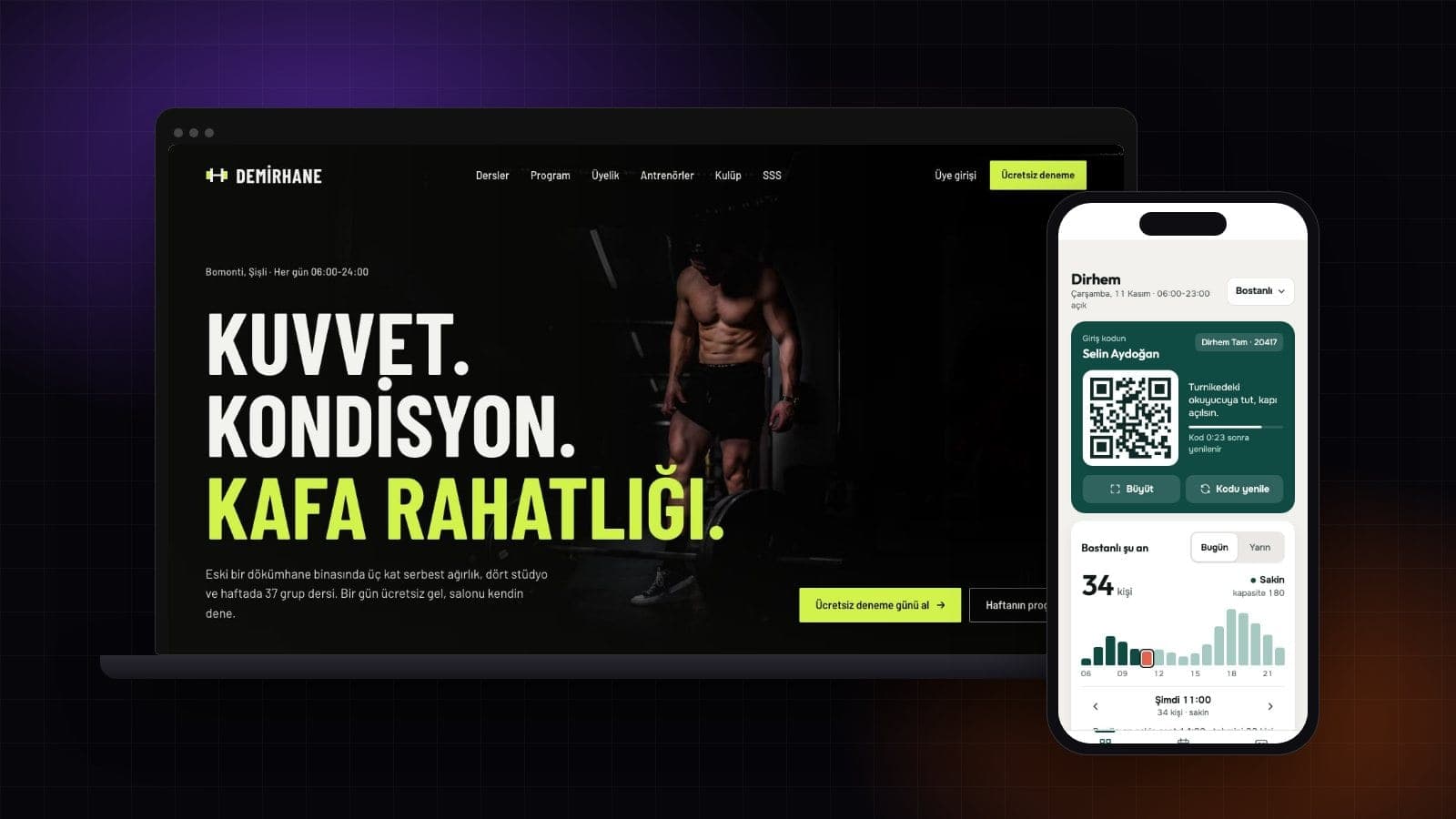
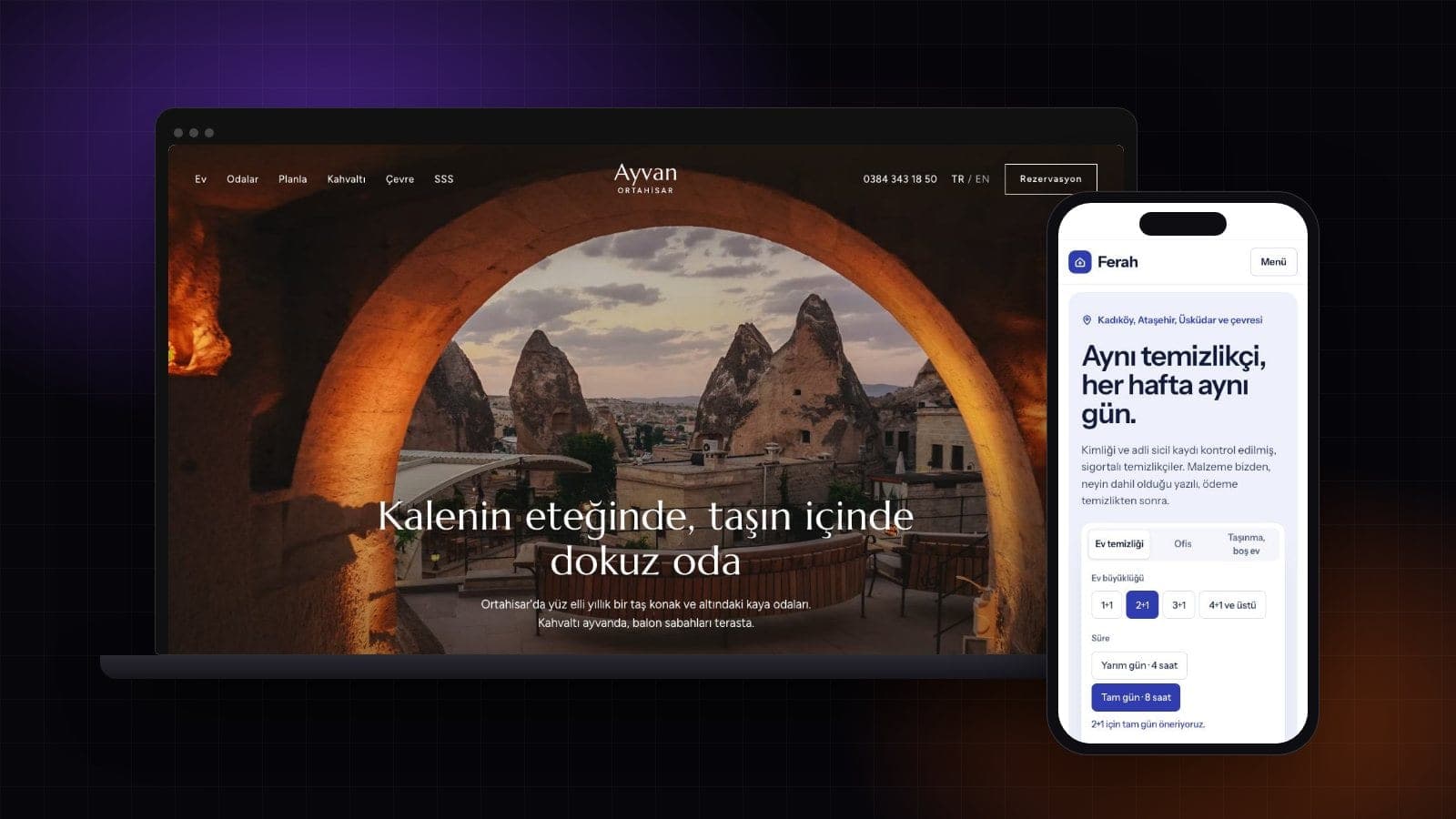
No project yet? Every mobile template in the gallery has the same card on its page. Trying a template demo is free and needs no Entrobase account. Building your own app is on the Pro plan and above; you can start from the prompt on the AI app builder page.
Three mobile templates you can open in Expo Go


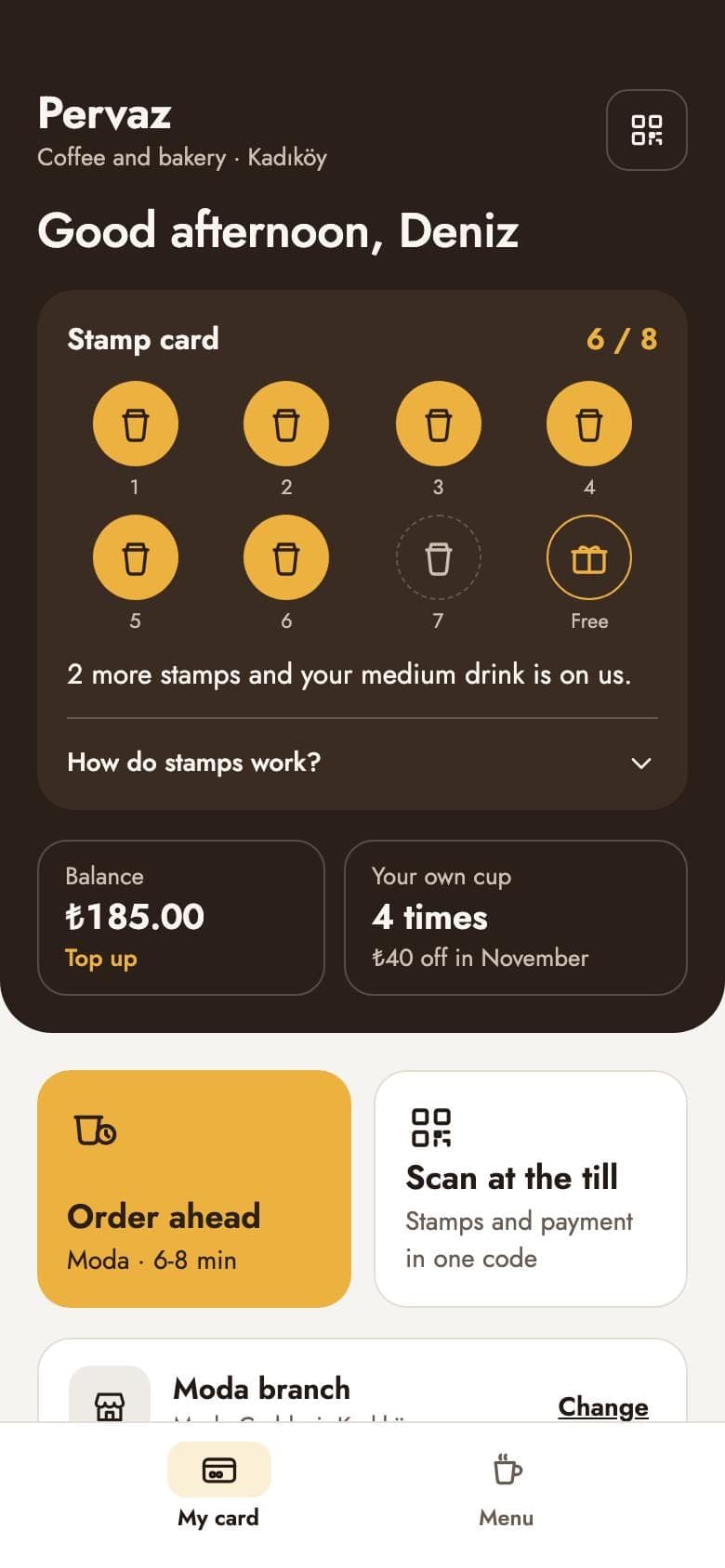
Here is a small app prompt worth testing on a phone. We have not run this prompt; it is here because it includes vibration, a feature you can only judge on a real device.
Example prompt: reading timer app:
Expo Go vs. a store build
| Topic | Testing in Expo Go | Store build |
|---|---|---|
| How it opens | Inside Expo Go, from a code or a link | Installed on the phone, with its own icon |
| Who can open it | People you give the code or link to, with Expo Go installed | Anyone who downloads it from the store |
| Updates | A change arrives within seconds | A new version is built and goes through store review |
| What you need | Expo Go | A build plus your own developer account: 99 USD a year for Apple, a one-time 25 USD for Google Play |
In Entrobase the store path starts on the App button. You connect your Expo account once; Create APK makes a file you install directly on an Android phone, and Create AAB makes the Google Play bundle, which you upload in Play Console yourself. iPhone builds and App Store submission are marked as coming soon, so on iPhone Expo Go is the way to test for now.
Conclusion: try it on a real phone today
Install Expo Go, pick a mobile template in the gallery and scan its code. Within a few minutes you will know how an app like yours feels in the hand. If you are running your own project and an iPhone refuses to open it, check the account on both sides before anything else.
Frequently asked questions
Is Expo Go free?
Yes. Expo Go is a free download: the App Store listing shows it as free on November 12, 2026, and the Android version is on Google Play. An Expo account, which iPhone users need for projects served from their own computer, is free too. Costs start when you publish: Apple's developer program is 99 USD a year and Google Play registration is a one-time 25 USD.
Does Expo Go work on iPhone?
Yes. Scan the project's QR code with the iPhone Camera app and tap the link to open it in Expo Go. For a project served from a development server on your computer, Expo CLI and Expo Go must be signed in to the same Expo account. Apps built in Entrobase open without that step.
Why is my Expo Go QR code not working?
Check three things. On Android, scan from inside Expo Go with Scan QR code. On iPhone, make sure Expo CLI and Expo Go are signed in to the same account. On either phone, join the same Wi-Fi as your computer or restart the server with the tunnel option. If Expo Go reports an incompatible project, the SDK versions do not match.
Do I need to log in to Expo Go?
It depends on the phone and on where the project comes from. On a physical iPhone, a project served from a development server opens only when Expo CLI and Expo Go use the same Expo account. Android devices, emulators, simulators and published updates are not affected. Apps built in Entrobase and its template demos open without an Expo account.
Can I publish an app from Expo Go to the App Store?
No. Expo Go is for testing. A store needs a separate build made for your own developer account. In Entrobase you can create an Android APK and a Google Play bundle (AAB) on your Expo account today and upload the AAB yourself; iPhone builds and App Store submission are coming soon.
Do my phone and computer need to be on the same Wi-Fi?
For a project served from your computer, yes. If the network blocks the connection, which Expo's docs say is common on public networks, start the server with the tunnel option and scan again. For an app built in Entrobase the phone only needs an internet connection, because the app is not served from your computer.
Sources
- Expo belgeleri: Set up your environment (Expo Go tanımı, iPhone'da hesap şartı)Checked on November 12, 2026
- Expo belgeleri: Start developing (QR kod, aynı Wi-Fi, tünel)Checked on November 12, 2026
- Expo belgeleri: Create your first app (Android'de Expo Go, iOS'ta kamera ile okutma)Checked on November 12, 2026
- Expo belgeleri: Expo Go sign-in requiredChecked on November 12, 2026
- Expo belgeleri: Expo Go version mismatchChecked on November 12, 2026
- Expo belgeleri: Development builds FAQ (Expo Go'da yapılamayanlar)Checked on November 12, 2026
- Expo changelog: Expo Go and the App Store in May 2026 (4 Mayıs 2026)Checked on November 12, 2026
- App Store: Expo Go (fiyat: ücretsiz)Checked on November 12, 2026
- Google Play: Expo GoChecked on November 12, 2026
- Apple Developer Program: üyelik ücreti (yılda 99 USD)Checked on November 12, 2026
- Google Play Console Yardım: geliştirici hesabı kaydı (25 USD)Checked on November 12, 2026
- Entrobase yardım: Mobil uygulama ve Expo GoChecked on November 12, 2026
Founder of Entrobase
Yunus Emre Sak is the founder of Entrobase. He has been building websites and software for businesses since 2018 and writes here about what he has built and tested with Entrobase.