Presentation Slides Prompt: 7 Copy-Paste Prompts for Gemini
7 presentation slides prompts: an interactive lesson deck with click-to-reveal quiz slides for the classroom, plus Gemini and ChatGPT prompts that build slides one by one.
Prompt
Fill in the fields below and the prompt updates instantly. Copy it and use it in any AI tool.
Build a 10-slide interactive lesson presentation that teaches "Photosynthesis: how plants make their food" to 7th grade students.
Formata one-page Next.js site; slides are 16:9 and readable on a projector (body text at least 32 px).
Slide plan
Cover: the topic, the class level and a one-sentence curiosity question.
Prior knowledge: a question that starts from an everyday situation students know.
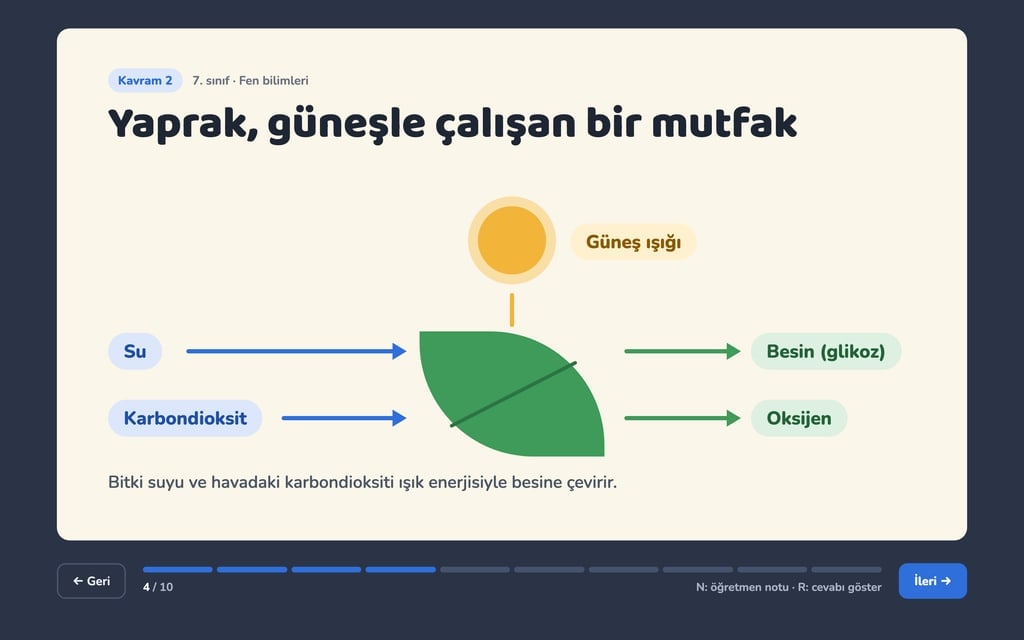
Concept slides: one concept per slide, a short definition and a simple diagram drawn in HTML and CSS (arrows, boxes, colored labels).
Check-in question: a four-option multiple choice question; a correct answer lights up green, a wrong one red, and a short explanation appears.
Everyday example: one large image area and 2 bullets.
A closing question and a 3-point summary.
Navigation
Arrow keys, the space bar and a click; a progress bar and a "4 / 10" counter at the bottom.
The N key opens the teacher's note in a panel from the bottom: the question to ask on that slide and a suggested time.
On answer slides the answer starts hidden; the R key or a "Show answer" button reveals it.
Design
Main color #2f6fdb; for concept labels and the progress bar.
A light paper-toned background with dark text; a rounded, friendly title typeface.
Strong contrast between text and background; at most 25 words per slide.
Content
Accurate facts suited to the level; write [source needed] instead of any number you are unsure of.
Short English sentences; no real brands or people; no lorem ipsum.
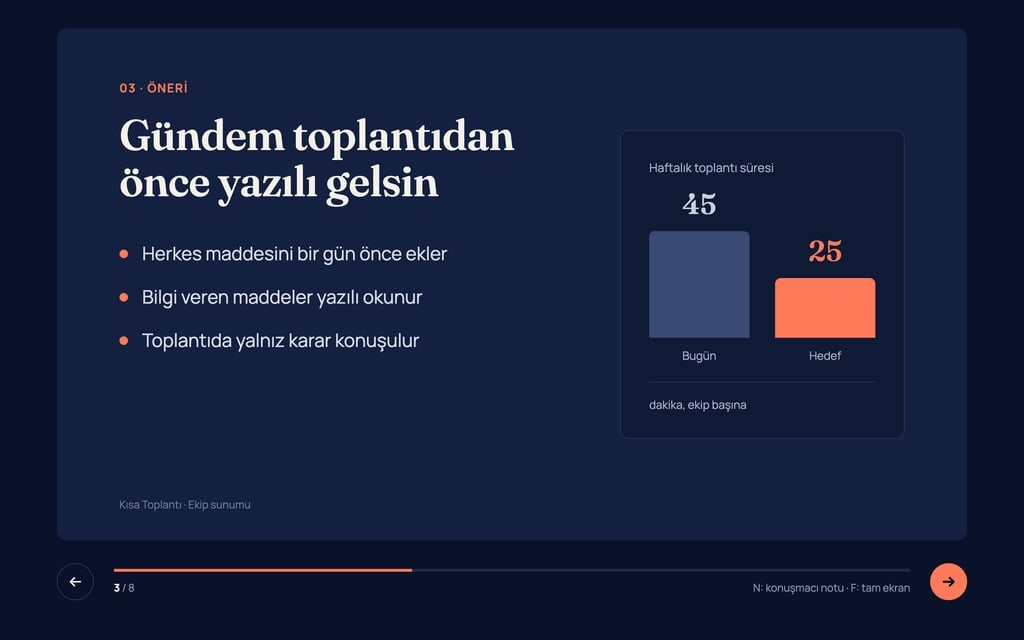
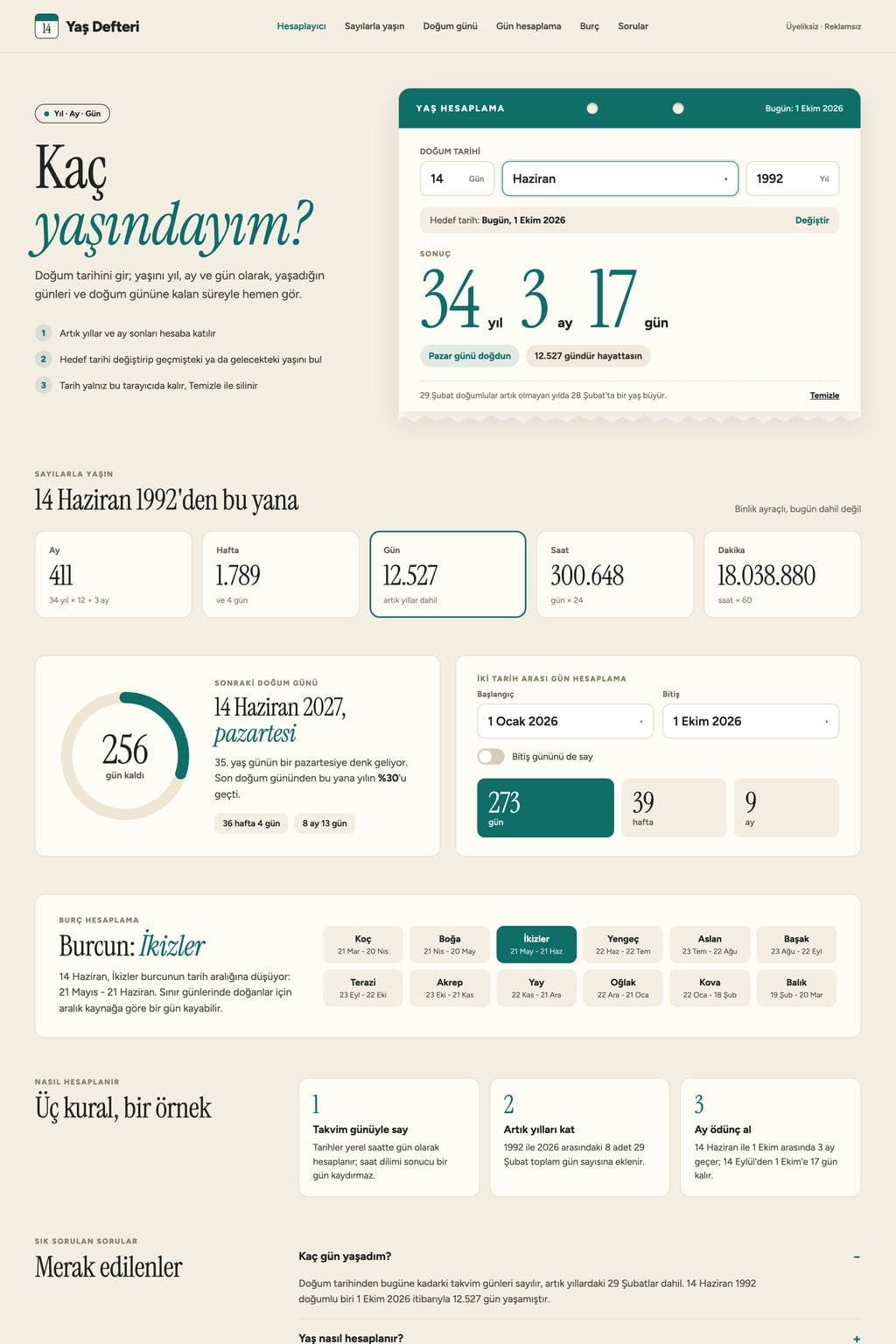
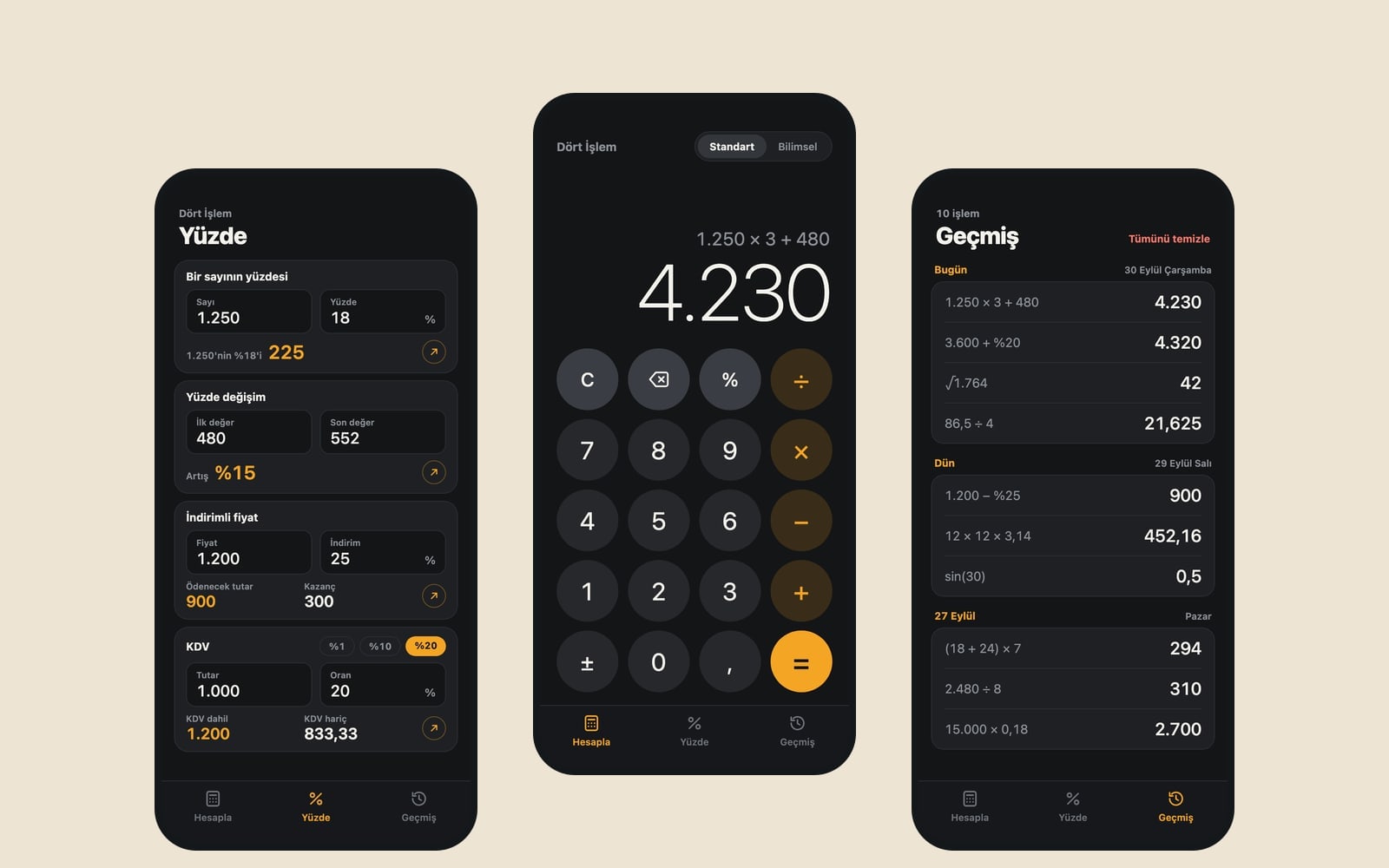
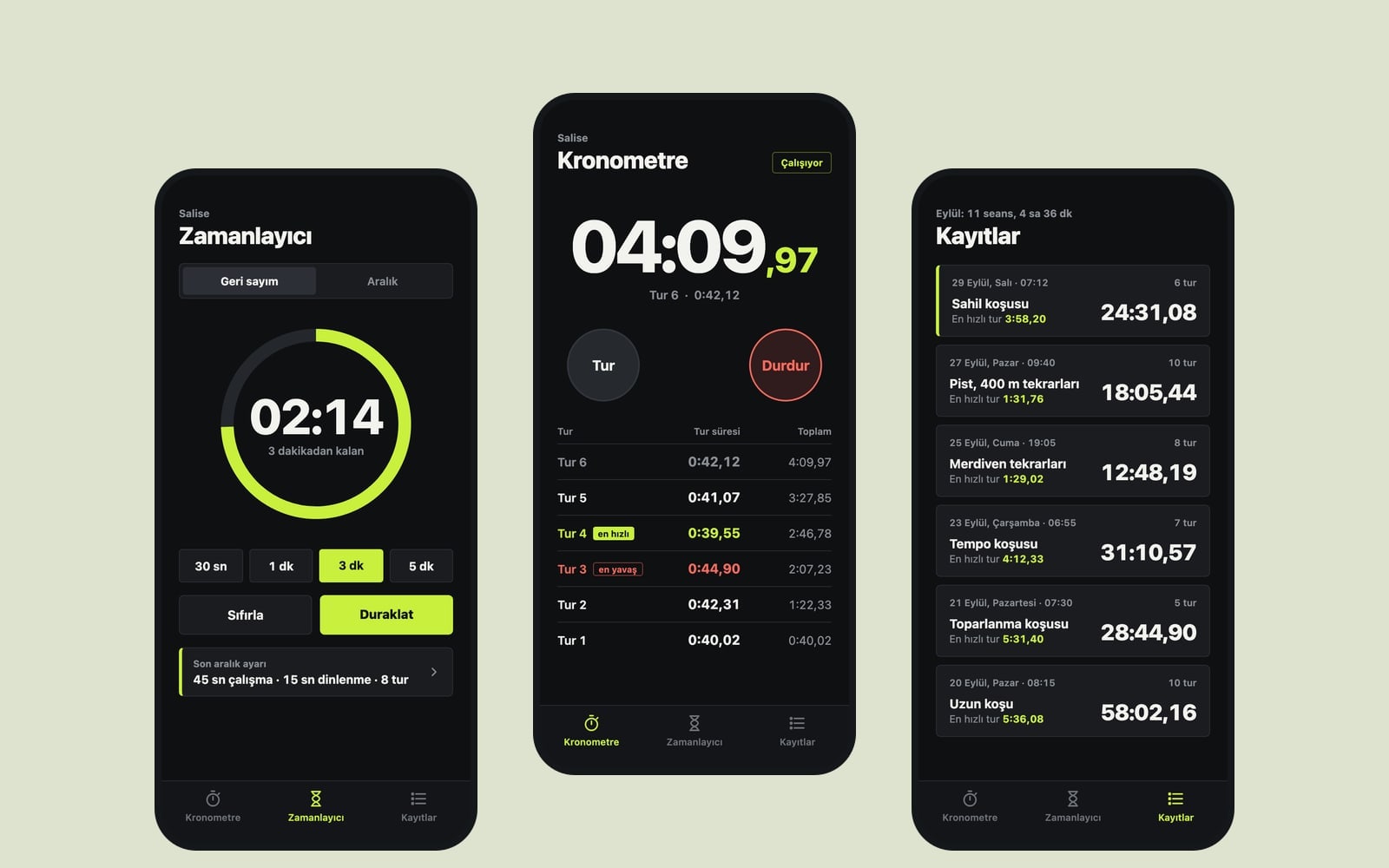
Design preview made from this prompt
6 more ready-to-use prompts
Different takes on the same topic. Copy any of them as is and replace the parts in square brackets.
1.Gemini presentation slide prompt: outline first
When to use: When you want to approve the plan in Gemini before it writes every slide.
You are an experienced teacher. We are preparing a [10]-slide presentation on [topic].
- Audience
- [grade level], length: [40] minutes.
First show the slide plan as a numbered list and wait for my approval.
After approval, write for each slide:
- Title
- At most 3 bullets
- Teacher note: the question to ask and the time
End with a 5-question quiz on the topic.
2.Presentation slide making prompt for ChatGPT
When to use: When the topic is broad and you need help narrowing what to cover.
You will prepare a presentation for me. First ask me these questions one at a time:
- 1What is the topic and the goal?
- 2Who is the audience and how much do they know?
- 3How many minutes?
- 4Which 3 points must be covered?
Then show the slide plan as a table. When I say 'approved', write each slide's title, bullets and speaker notes.
3.Student project presentation slides
When to use: When you are a student presenting a project or research to the class.
Write an 8-slide plan for presenting my project on [topic] to the class.
- Slides
- cover, why this topic, research question, how we worked, findings, one surprising fact, conclusion, sources.
Rules
- At most 3 bullets per slide.
- Use only the findings I give you: [paste my findings].
4.AI prompt for presentation slide images
When to use: When your slide text is ready and you want a fitting image for each slide.
For each slide below, give:
- 1What kind of visual fits (photo, diagram, icon)
- 2A one-paragraph image prompt: plain background, no text, 16:9
Rules
- No text inside images; text stays on the slide.
- No real people or brands.
Slides
[paste the slide text]
5.Seminar or thesis defense slides
When to use: When you are presenting a paper or your own research in 15-20 minutes.
Write a 12-slide plan for a 15-minute academic talk on [title of the work].
- Order
- title, motivation, research question, literature (2 slides), method, findings (3 slides), discussion, limitations, conclusion.
Rules
- For each chart on the findings slides, write a one-sentence takeaway.
- Do not invent citations; write [source] instead.
6.Speaker script from your slides
When to use: When the slides are done and you want to rehearse what to say.
Write a [10]-minute talk script for the slides below.
Give the minutes to spend on each slide.
Put transition sentences in bold.
End with 3 questions the audience might ask and short answers.
Slides
[paste the slide text]
What this prompt does
People searching for a presentation slides prompt usually want Gemini or ChatGPT to turn a topic into an organized deck slide by slide, and teaching a topic in class is one of the most common reasons. The main prompt builds a 10-slide lesson deck with concept diagrams, click-to-reveal quiz slides and teacher notes; the 6 prompts below cover slide building in Gemini and ChatGPT, slide images, seminars and rehearsal.
Where to use it
- Classroom lesson
- Student project presentation
- University seminar
- Workplace training
- Parent meeting briefing
Fields you can fill in
The fields you can change in the form above and their default values.
- Lesson topicFree text
- Photosynthesis: how plants make their food
- LevelOne of 5 options
- 7th grade students
- SlidesOne of 3 options
- 10
- Check-in typeOne of 3 options
- a four-option multiple choice question
- Main colorColor
- #2f6fdb
Step by step
- 1
Enter the topic and level
Write the topic and a one-line goal in Lesson topic (for example, Photosynthesis: how plants make their food). The level changes word choice, examples and how detailed the diagrams are.
- 2
Choose the check-in type
Multiple choice is a quick poll, true-or-false sparks discussion, matching reviews terms. On question slides the answer stays hidden until the teacher reveals it.
- 3
Check the facts
Compare each concept slide with your textbook and fill in anything marked [source needed]. AI tools can get details wrong in science and history.
- 4
Project it in class
Open the deck in a browser and go full screen with F11; use the arrows, N for teacher notes and R to reveal answers. Ten slides and two check-ins fit a 40-minute lesson.
Tips and variations
- WCAG recommends at least 4.5:1 contrast for normal text; projectors wash colors out, so dark text on a light background keeps that ratio.
- Add 'reveal the diagram step by step, one arrow per click' to concept slides so the diagram builds at your pace.
- Keep the 25-word limit per slide so the back row can read it; everything else goes into the teacher notes.
- To share the deck as revision material, ask for a second version that hides teacher notes and starts with answers shown.
Frequently asked questions
What is a good Gemini presentation slide prompt?
Give Gemini the topic, audience, slide count and bullet limit on separate lines; ask for the outline first, then the slide text and speaker notes once you approve. The Gemini variant below works in that order.
How do I write an AI prompt for presentation slides?
State the goal, audience, length and the output you want (outline, slide text, notes). Asking the AI to question you first narrows the topic and cuts generic slides.
How many slides does a lesson presentation need?
Eight to ten slides suit a 40-minute lesson; most of the time goes to questions and discussion. The Slides field offers 8, 10 or 14.
Can the lesson deck run offline?
A deck built in Builder opens from a link once published. For a classroom without internet, use the single HTML file approach or save it as a PDF from the browser.