Timer app prompt: stopwatch with laps and a countdown timer
A timer app prompt: a stopwatch with laps, a countdown timer and an interval timer mode with saved sessions, 3 screens. Works in the Entrobase mobile app builder.
Prompt
Fill in the fields below and the prompt updates instantly. Copy it and use it in any AI tool.
Build a stopwatch and timer app called Split Second: the user keeps time for running and workouts, records laps and sets countdowns. 3 screens, 3 tabs in the bottom tab bar: Stopwatch, Timer, Sessions.
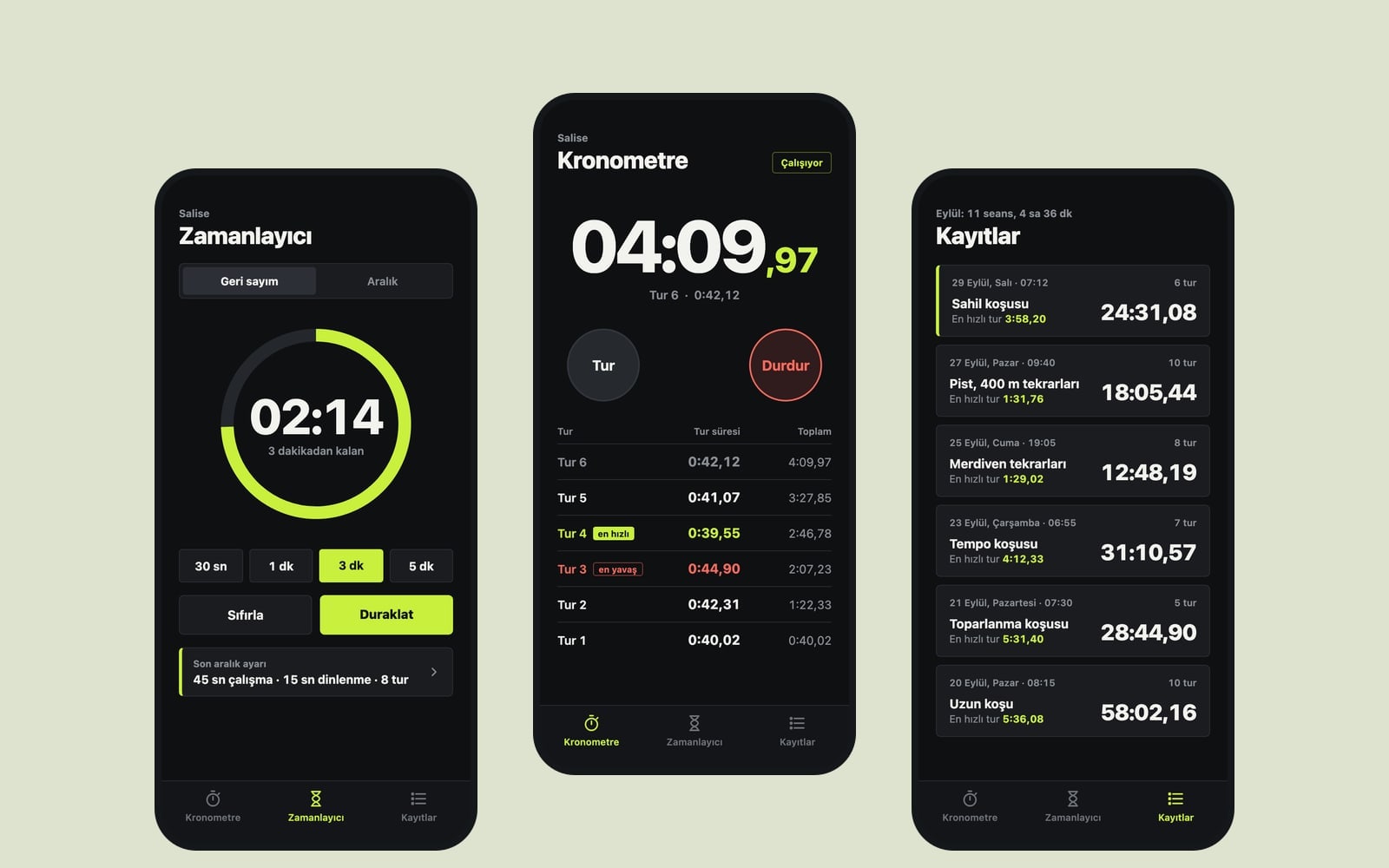
Stopwatch screen (the core component): the elapsed time in huge type across the top half (minutes:seconds.hundredths; hours appear after the first hour), tabular digits that do not shift while running. Below it, two large round buttons: Lap / Reset on the left, Start / Stop on the right (label and color follow the state). Under the buttons, the lap list: newest lap on top, each row with lap number, lap time and total time; the fastest lap in the main color, the slowest marked in a soft red. A stopped session can be added to Sessions with "Save" and a short note.
Timer screena Countdown / Interval switch at the top. Countdown has a minute and second picker, 4 preset buttons with realistic times for running and workouts, and a large progress ring around the remaining time; Start, Pause, Reset. Interval mode takes work time, rest time and number of rounds; the screen shows the phase by color (work in the main color, rest in grey) and a counter like "Round 3/8". When time is up, the screen flashes briefly and the phone vibrates.
Sessions screensaved sessions from newest to oldest; each card shows date, total time, lap count, fastest lap and note. Tapping a card opens the lap breakdown in a bottom sheet, swiping left deletes it. With no sessions, show a simple empty state.
Accuracycompute time from the start timestamp instead of accumulating ticks, so the time stays correct after the app goes to the background or the screen locks; if a countdown ended in the background, show "Time is up" on return. Keep the screen awake while the stopwatch or timer runs.
Designsporty, bold oversized digits, sharp corners, high contrast. Main color #c8f03c; dark theme by default with light theme support; system font; a short haptic tap on buttons. Save sessions and the last timer settings with AsyncStorage. Do not add notifications, background alarms, sound files or an account screen.
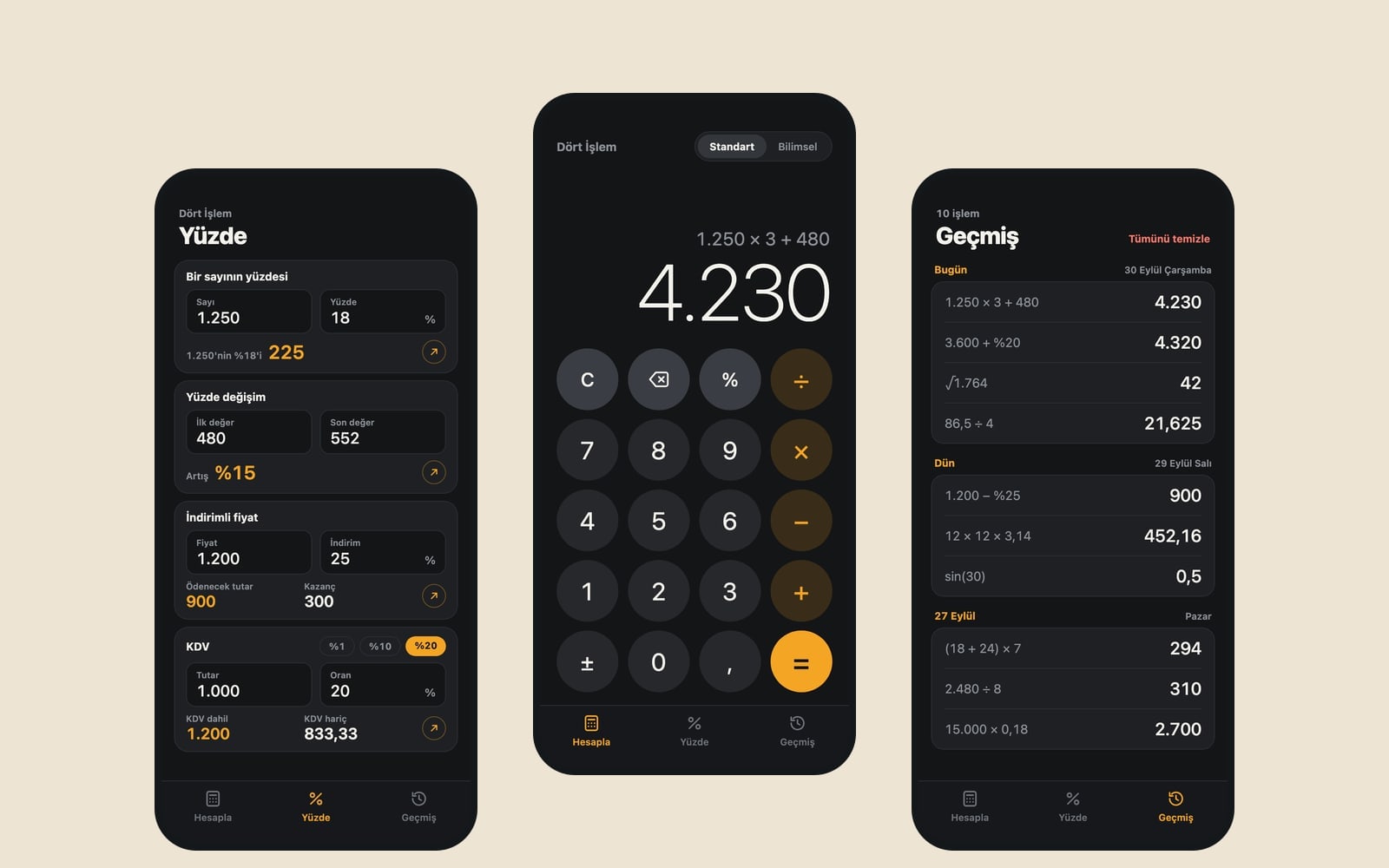
Design preview made from this prompt
What this prompt does
This prompt builds one app with a stopwatch that records laps, a countdown with a progress ring and an interval timer with work and rest rounds. The Used for setting decides the preset buttons, and finished sessions are saved with a note on the Sessions tab. It is made for runners, home cooks, students and anyone rehearsing a talk.
Where to use it
- Running and tabata workouts
- Brewing and cooking times
- Focused study sessions
- Timing a talk rehearsal
- Turn timers for board games
Fields you can fill in
The fields you can change in the form above and their default values.
- App nameFree text
- Split Second
- Used forOne of 5 options
- running and workouts
- LookOne of 4 options
- sporty, bold oversized digits, sharp corners, high contrast
- Main colorColor
- #c8f03c
Step by step
- 1
Name the app and pick a use
Fill in App name, then choose the app's main purpose under Used for. This sets the four preset buttons on the Timer screen: short intervals for workouts, brewing and cooking times for the kitchen, and so on.
- 2
Choose the look and main color
Pick sporty, clean, analog dial or frosted glass under Look. Main color marks the fastest lap, the work phase and the buttons; the dark theme is the default, so choose a shade that stands out on a dark background.
- 3
Build the app with Start
Press Start and the prompt opens in Entrobase Builder. Once you sign in with a free account, Builder writes the Stopwatch, Timer and Sessions screens. Open the app on your phone and try it with a real run or brew.
- 4
Test accuracy in the background
Start the stopwatch, lock the screen and unlock it a minute later; the time should still be right. Let a short countdown finish in the background and check that “Time is up” shows when you return. If anything drifts, describe it in the Builder chat.
- 5
Check the lap list and sessions
Record a few laps and make sure the fastest shows in the main color and the slowest in soft red. Save the session with a note, tap its card on Sessions to open the lap breakdown, and swipe left to try deleting it.
Tips and variations
- Set up interval mode for your own workout: before pasting, add a line such as “preset: 20 seconds work, 10 seconds rest, 8 rounds” so the prompt asks for the Interval screen to start with those values.
- For the kitchen, choose cooking and brewing in the kitchen under Used for, then ask the Builder chat to name the preset buttons (French press, soft-boiled egg); picking by name is quicker than reading numbers.
- The prompt leaves out notifications and sound files on purpose. If a flashing screen and a vibration are not enough for you, edit the last line and ask for an audible alert.
- Need a two-player chess clock for board games? Ask the Builder chat to add a third mode on the Timer screen that splits the display in two and keeps a separate time for each player.
Frequently asked questions
Does the stopwatch keep accurate time in the background?
The prompt asks for time to be computed from the start timestamp instead of adding up ticks. That way the time is still correct after the app goes to the background or the screen locks. Test the built app on your phone once to be sure.
Can I use the interval timer for tabata?
Yes. In interval mode you enter work time, rest time and number of rounds yourself; for tabata that is 20 seconds of work, 10 seconds of rest and 8 rounds. The screen shows the phase by color and a counter like “Round 3/8”.
Will an alarm sound when the countdown ends?
The prompt says not to add sound files, notifications or background alarms; when time is up the screen flashes briefly and the phone vibrates. If you want a sound, change the last line of the prompt and ask for it clearly.
Where are my saved sessions stored?
Sessions and the last timer settings are saved on the phone itself with AsyncStorage; there is no account screen. If you delete the app, the saved sessions go with it.