Calculator app prompt: scientific calculator and percentage calculator
A calculator app prompt: a standard and scientific calculator with a percentage calculator, tax cards and calculation history, 3 screens. Works in the Entrobase mobile app builder.
Prompt
Fill in the fields below and the prompt updates instantly. Copy it and use it in any AI tool.
Build a calculator app called Quick Sum: the user does everyday arithmetic, percentage and tax calculations in one app and can return to earlier calculations. 3 screens, 3 tabs in the bottom tab bar: Calculate, Percent, History.
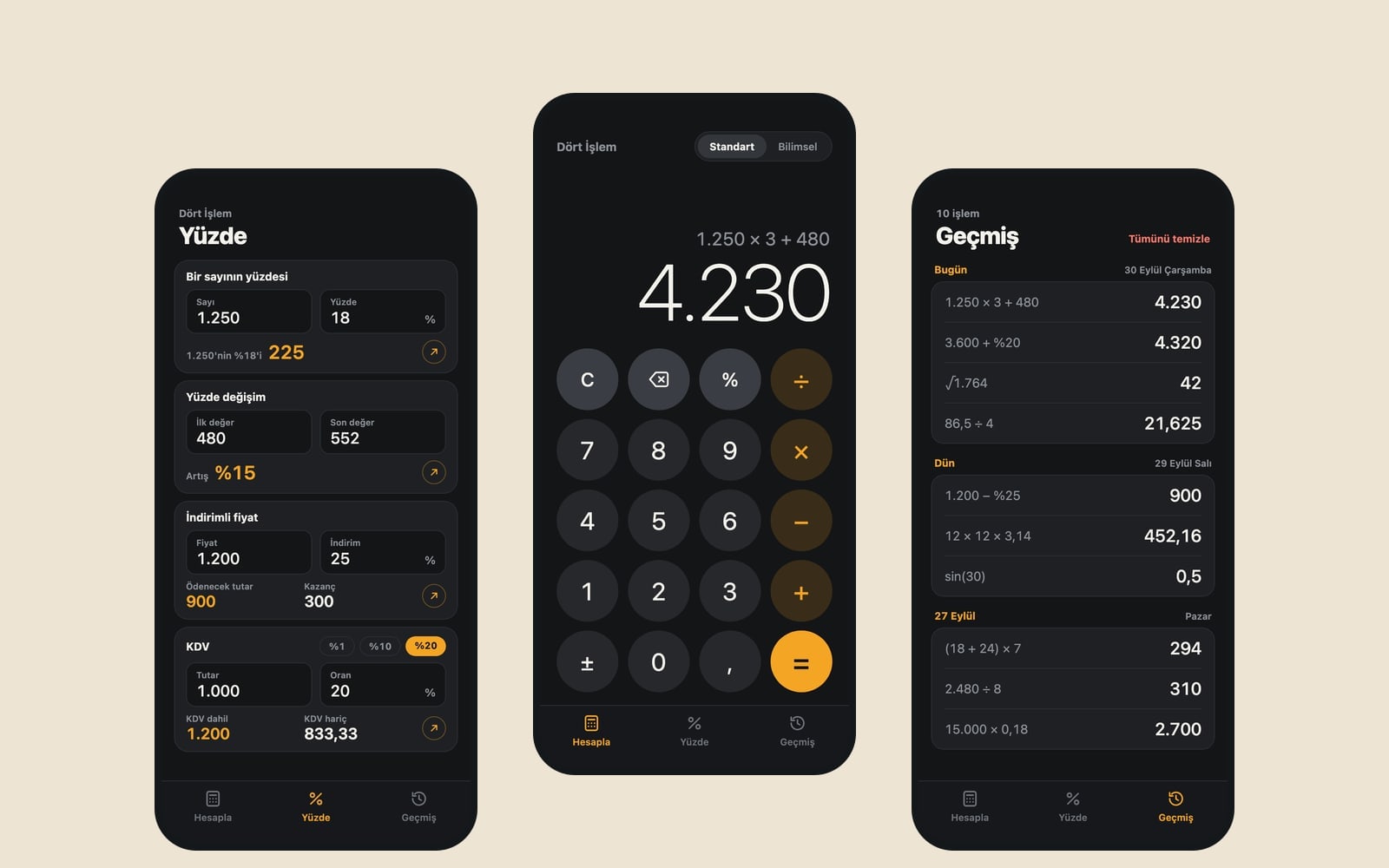
Calculate screen (the core component): a two-line display at the top; the small line shows the expression being typed (for example 1,250 × 3 + 480), the large line shows the live result, and the type shrinks for long numbers. Below it, a 4-column keypad: digits, decimal point, the four operations, percent, plus/minus, C, delete (removes the last digit) and equals; operation keys in the main color, equals filled with the main color. Opening mode: standard, a four-function layout with large keys. A mode button above the keypad switches between standard and scientific; scientific mode opens extra rows with sin, cos, tan (with a degree/radian switch), square root, square, power, log, ln, pi, e and parentheses.
Calculation rulesrespect operator precedence (multiplication and division before addition, parentheses supported); evaluate the expression with your own parser, not eval. The percent key works like a phone calculator (200 + 10% = 220). Round results to 10 significant digits so 0.1 + 0.2 shows 0.3; on division by zero show "Undefined". Format numbers with a comma as the thousands separator and a point as the decimal separator.
Percent screenfour ready-made calculator cards, each with two input fields and an instant result: percentage of a number (B% of A), percent change (increase or decrease from A to B), discount price (price and discount rate; amount to pay and savings), tax (amount and rate; total with tax, amount before tax and the tax share). Default tax rate: 20%; next to it, quick picks for 1, 10 and 20. Each card has a small button that sends its result to the Calculate screen.
History screenpast calculations from newest to oldest, grouped by day; each row shows the expression and the result. Tapping a row loads the result into the Calculate screen, swiping left deletes it, and "Clear all" sits at the top. With no history, show a simple empty state.
Contentshort labels; on first launch the display shows 0 and the history is empty.
Designclassic pocket calculator, round keys, large thin display digits. Main color #f5a524; dark theme by default with light theme support; system font, tabular digits, keys large enough for a thumb, a short haptic tap on every key. Save the history (last 100 calculations), the selected mode and the tax rate with AsyncStorage. Do not add ads, an account screen or anything that needs the internet, such as exchange rates.
Design preview made from this prompt
What this prompt does
This prompt builds a calculator app with three tabs, Calculate, Percent and History, that puts everyday arithmetic, scientific functions, a percentage calculator and tax cards in one place. It applies operator precedence correctly, rounds away floating point noise, keeps the last 100 calculations on the phone and works without the internet. Handy for shop owners, bookkeepers and anyone who runs quick numbers.
Where to use it
- Price with tax for shop owners
- Discount price and savings
- Scientific calculator for students
- Percent change on a price rise
- A first mobile app project
Fields you can fill in
The fields you can change in the form above and their default values.
- App nameFree text
- Quick Sum
- Opening modeOne of 3 options
- standard, a four-function layout with large keys
- Tax rate (%)Free text
- 20
- StyleOne of 4 options
- classic pocket calculator, round keys, large thin display digits
- Main colorColor
- #f5a524
Step by step
- 1
Fill in App name and Tax rate (%)
App name shows on the home screen and in the header. Type only a number into Tax rate (%), like 20, 10 or 5; it becomes the default on the tax card, and the quick picks for 1, 10 and 20 appear next to it either way.
- 2
Choose the Opening mode and Style
Standard opens the four-function layout with large keys, scientific opens with the function rows showing, and last used brings back whichever mode was open when the app closed. Style shapes the keys: classic pocket, flat and square, retro LCD or soft and puffy.
- 3
Press Build an app with this
The button sends the prompt to Entrobase Builder, which writes the three screens, and you can try the app on your phone. A free account is needed. If you would rather have another tool write the code, press Copy and paste it into ChatGPT, Gemini or Claude.
- 4
Test the math rules one by one
Type 2 + 3 × 4 and you should get 14. 200 + 10% should give 220, 0.1 + 0.2 should show 0.3, and dividing by zero should show 'Undefined'. If any rule fails, describe it with that exact example in the Builder chat.
- 5
Check the Percent cards and History
On the tax card, 1,000 at 20% should give 1,200 with tax and 200 of tax. Make sure the card button sends its result to Calculate, tapping a History row loads the result, and history survives closing and reopening the app.
Tips and variations
- Add your own card to the Percent screen: in the copied prompt, add 'profit margin (cost and selling price; profit and margin percent)' to the card list and change 'four ready-made calculator cards' to 'five'.
- For students, set Opening mode to scientific and try the retro desktop calculator style; the LCD display and function rows feel close to an exam calculator.
- Changing Tax rate (%) covers a different default rate, but the quick picks are fixed at 1, 10 and 20 in the prompt; edit those three numbers in the copied text if your rates differ.
- The prompt leaves out ads, accounts and exchange rates on purpose. If you want a currency converter, ask for it later in the Builder chat as a separate tab and say where the rates should come from.
- Main color fills the operation keys and equals, and the dark theme is the default, so a color that glows on dark backgrounds (amber, yellow, light green) keeps the keys easy to read.
Frequently asked questions
How does the percent key work in this app?
Like a phone calculator: typing 200 + 10% gives 220, so the percentage is taken from the number before it. To see a percentage of a number, a percent change or a discount price on their own, use the cards on the Percent tab.
Does the tax card show the amount before and after tax?
Yes. Enter the amount and the rate, and the card shows the total with tax, the amount before tax and the tax share together. The default rate comes from the Tax rate (%) field. The app only does the math; check which rate applies to you with an accountant or an official source.
Why does the prompt ask for a parser instead of eval?
eval runs text as code, which can cause both safety and accuracy problems. The prompt asks for a small parser that applies operator precedence and parentheses correctly, so multiplication and division always happen before addition.
Does the calculator app work offline?
Yes. The prompt leaves out anything that needs the internet, such as exchange rates, ads or accounts. History, the selected mode and the tax rate are saved on the phone with AsyncStorage, so the last 100 calculations are still there after a restart.
Can another AI write the code for this app?
Yes. Copy the prompt into ChatGPT, Gemini or Claude and they will write the code; setting up the project and running it is up to you. Build an app with this has Entrobase Builder write the screens and lets you try the app on your phone.