Canvas
Create images with AI
Canvas
Write a prompt, pick a style; your brand visual is ready in seconds.
Enter generates, Shift + Enter adds a line, / jumps to the prompt. EntroGen models are included in your plan and use monthly image credits: Auto 2 per image, EntroGen Flash 1.
Start from a template
Answer a few questions, we write the promptExample images
Real outputs of prompts from the prompt library. Open one to copy the prompt or start it with your own values.
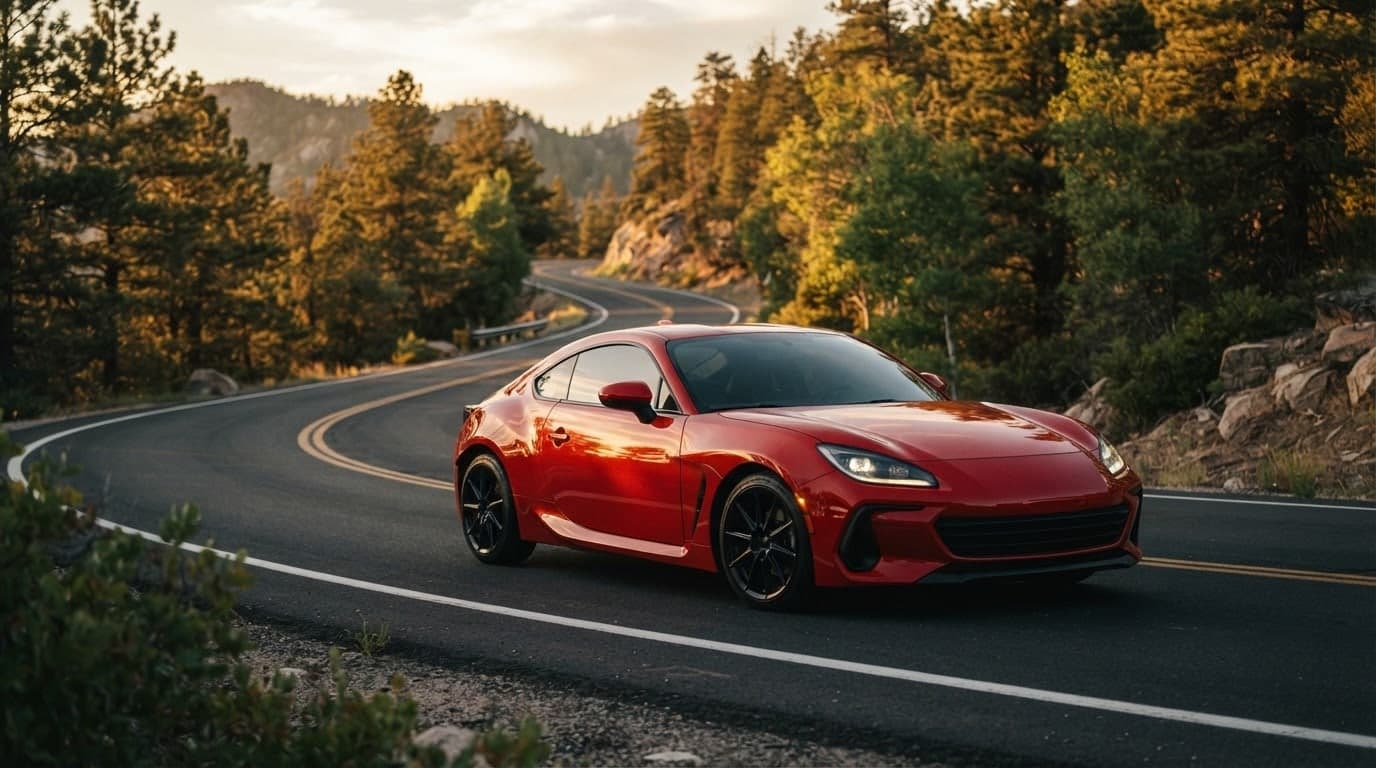
Car prompts: 10 ready-to-use prompts for Gemini and ChatGPT
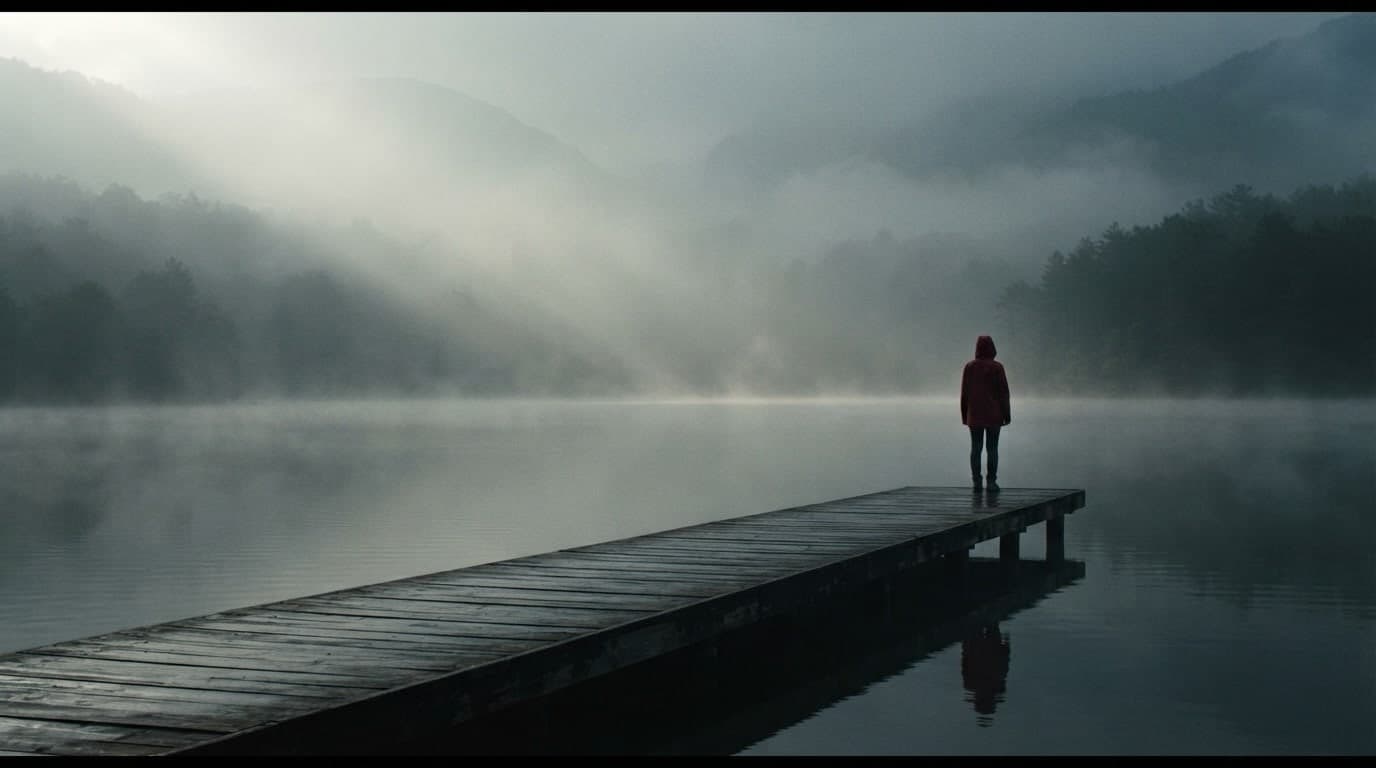
Cinematic prompts: 10 ready-to-use prompts for ChatGPT and Gemini

ChatGPT caricature prompts: 10 ready-to-use prompts for ChatGPT and Gemini
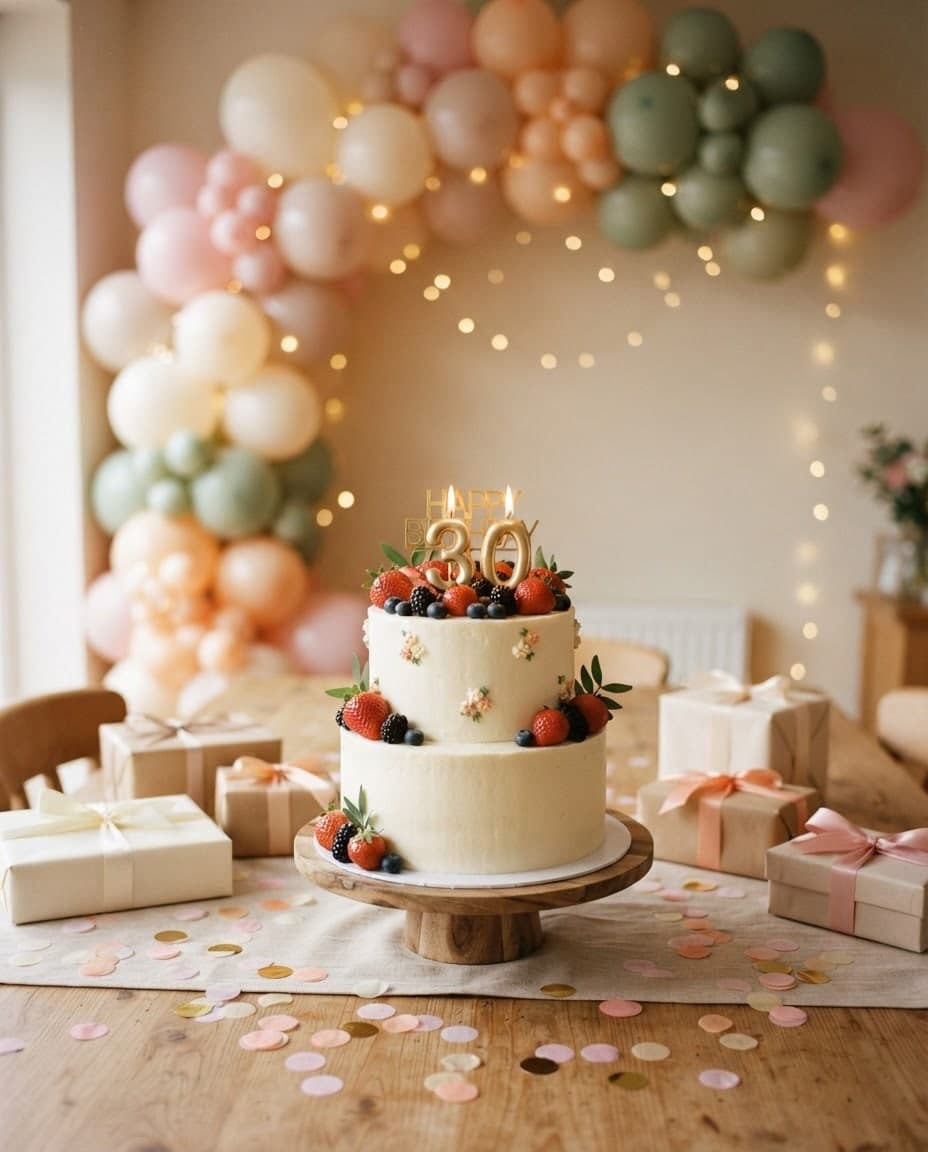
Birthday prompts: 10 ready-to-use prompts for Gemini and ChatGPT
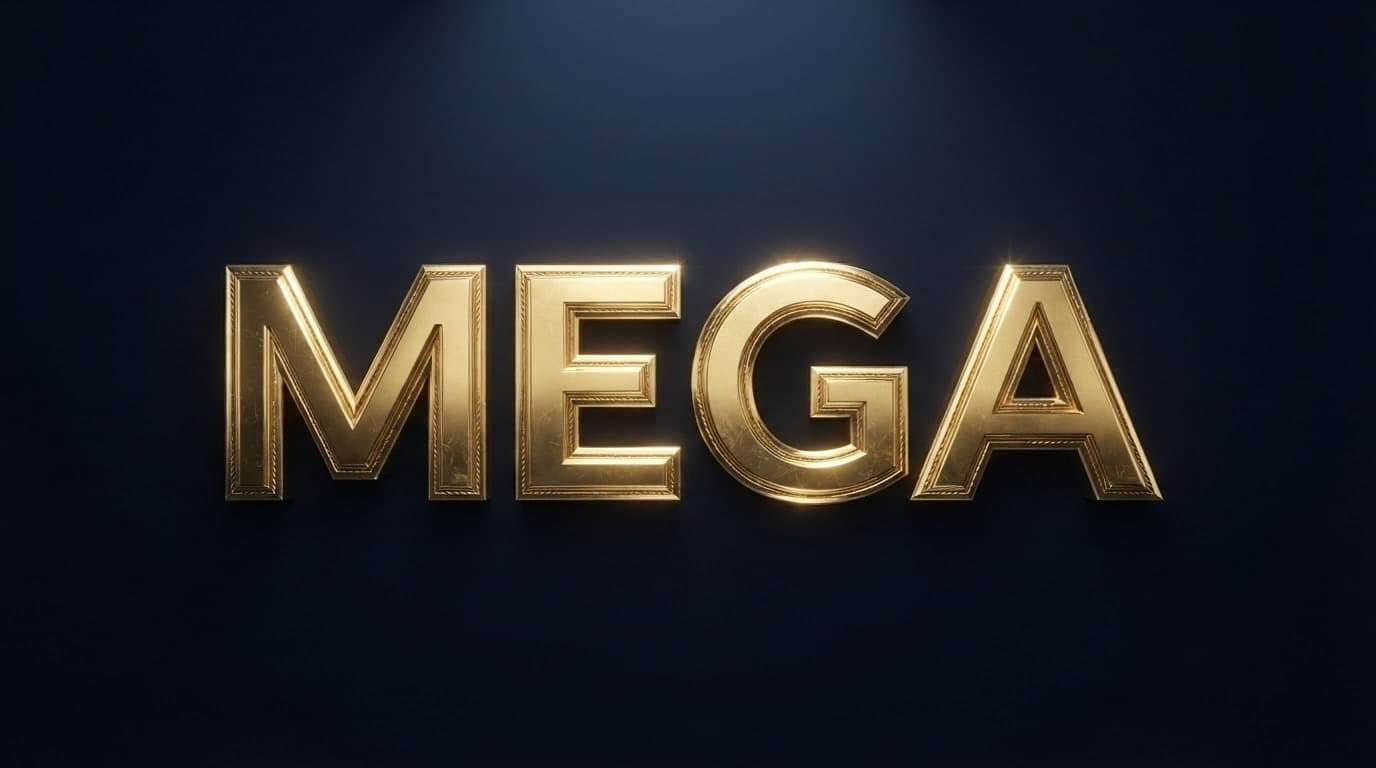
Text Effect Prompts: 7 Prompts for ChatGPT and Gemini (2026)
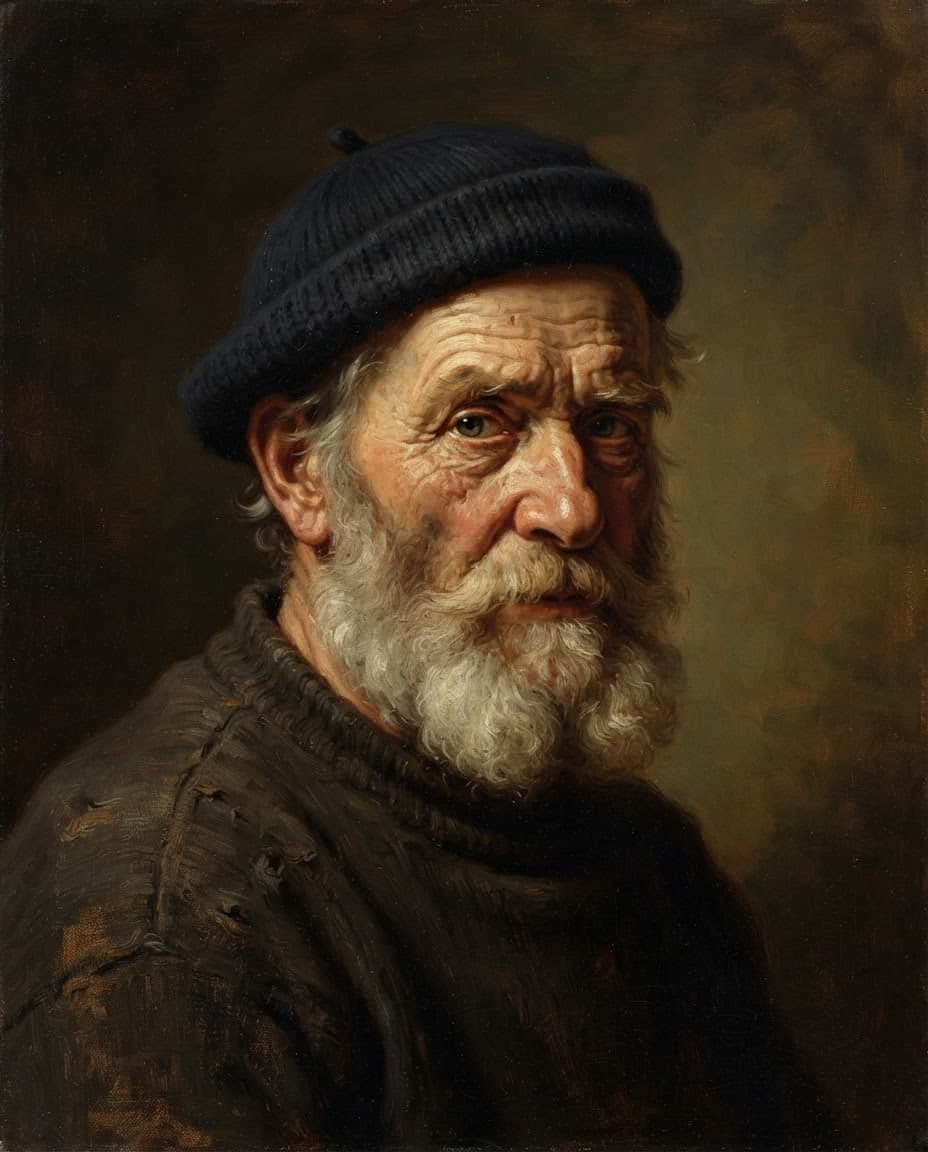
Oil painting prompts: 10 ready-to-use prompts for ChatGPT and Gemini
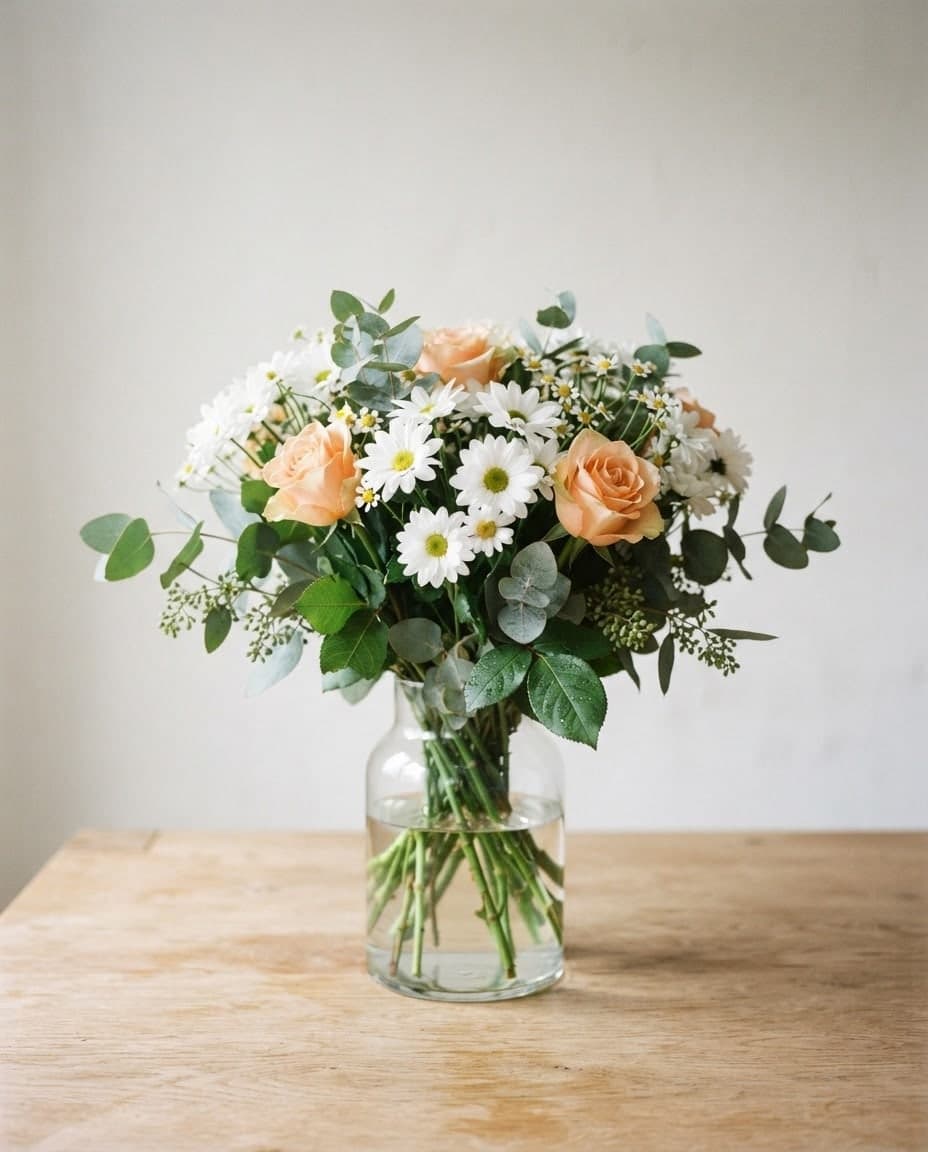
Flower bouquet prompt: realistic flower images and photos
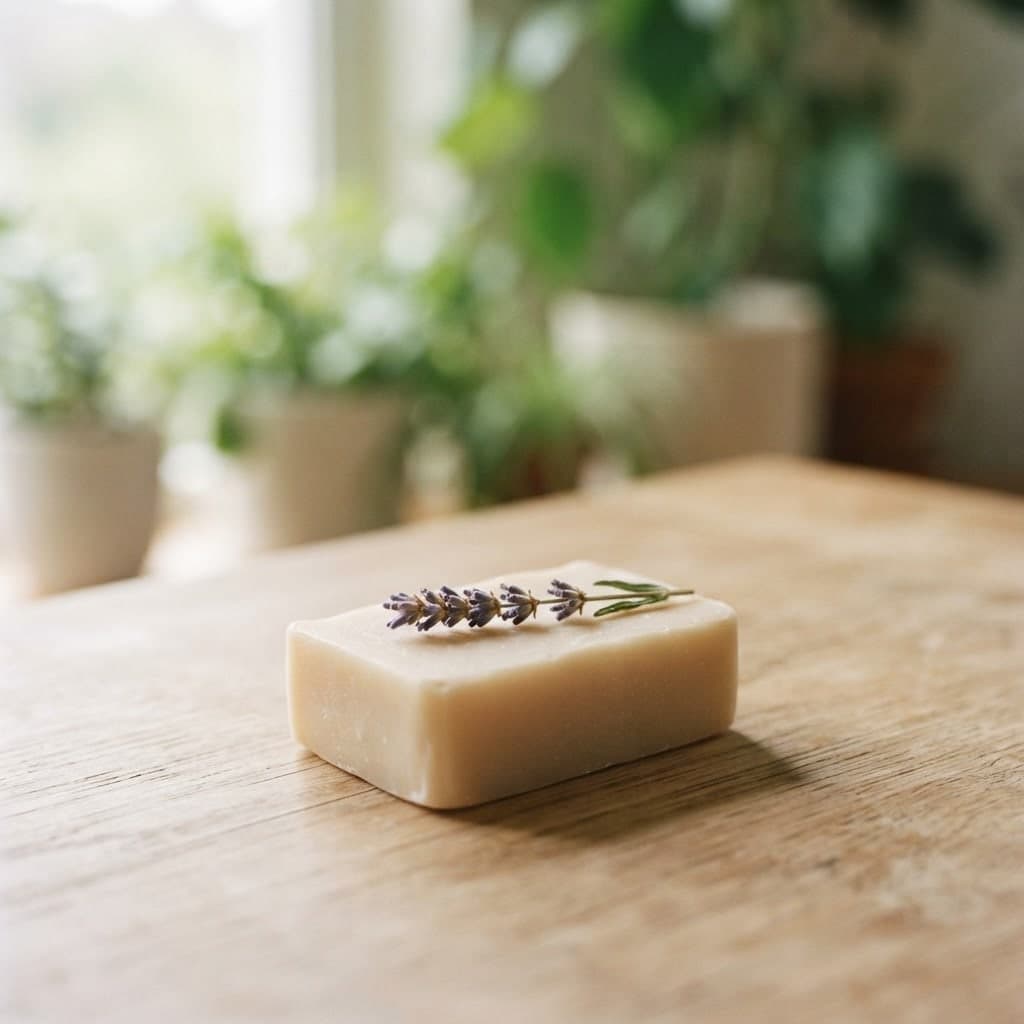
Product photography prompt: handmade soap photoshoot
Restaurant Logo Prompt: 8 Ready-to-Use Prompts for ChatGPT
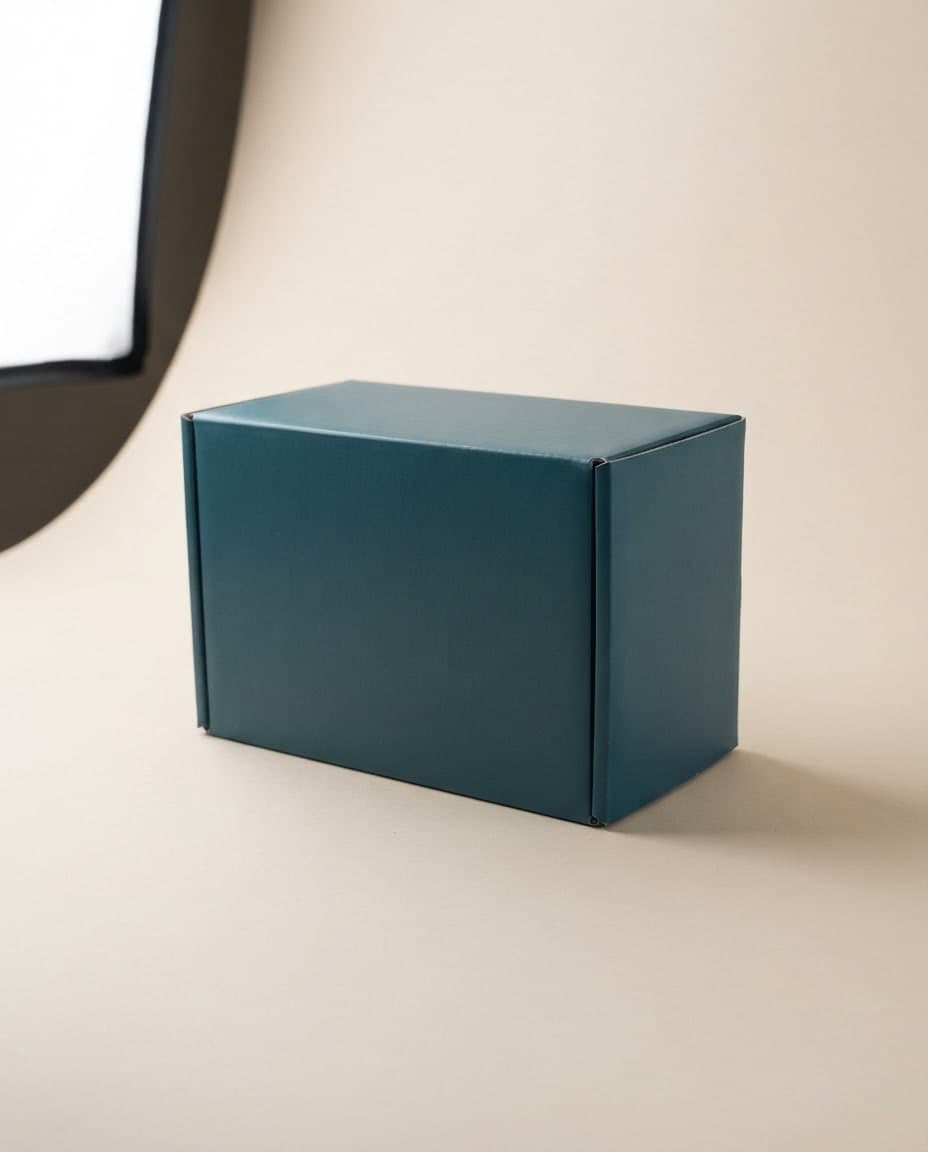
Mockup Prompts: 10 Copy-Paste Prompts for ChatGPT and Gemini
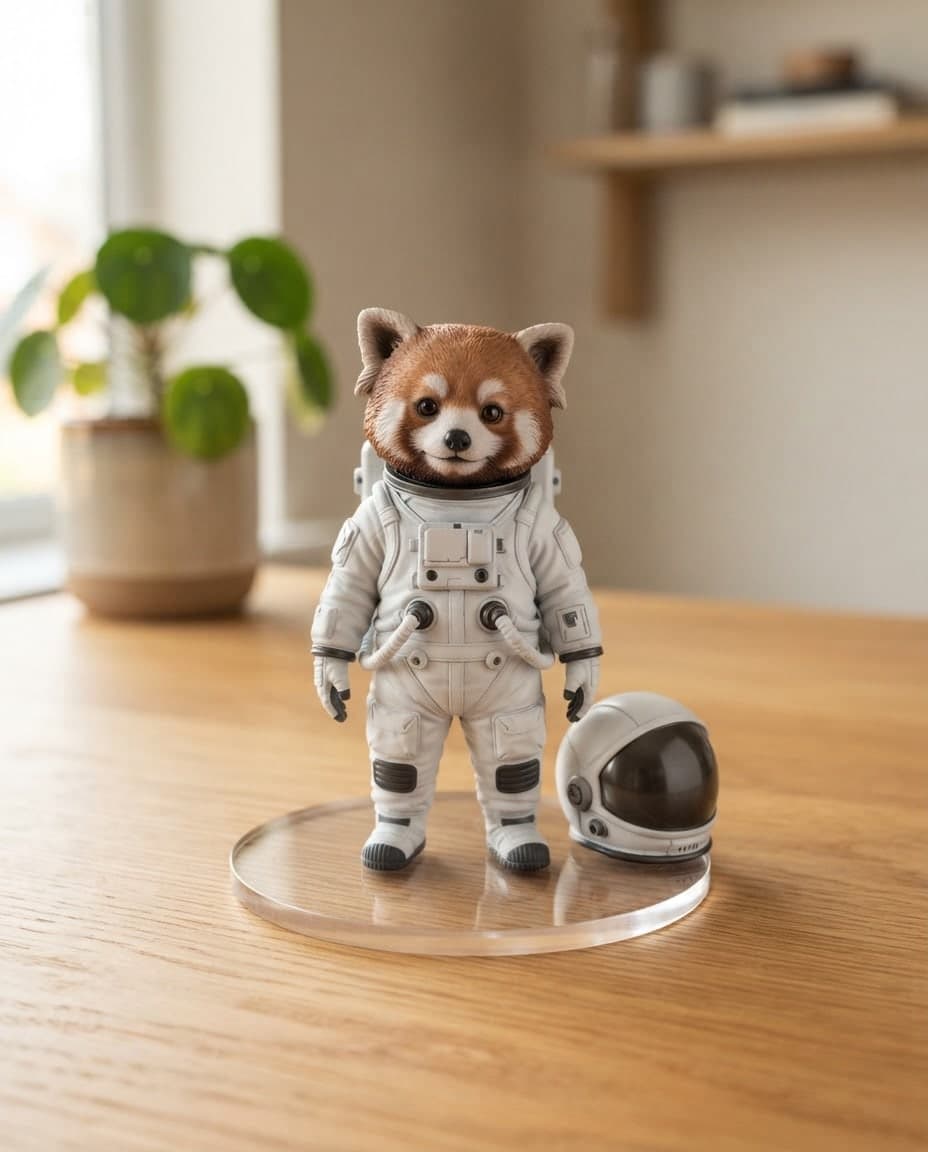
3D prompts: 10 ready-to-use prompts for Gemini and ChatGPT
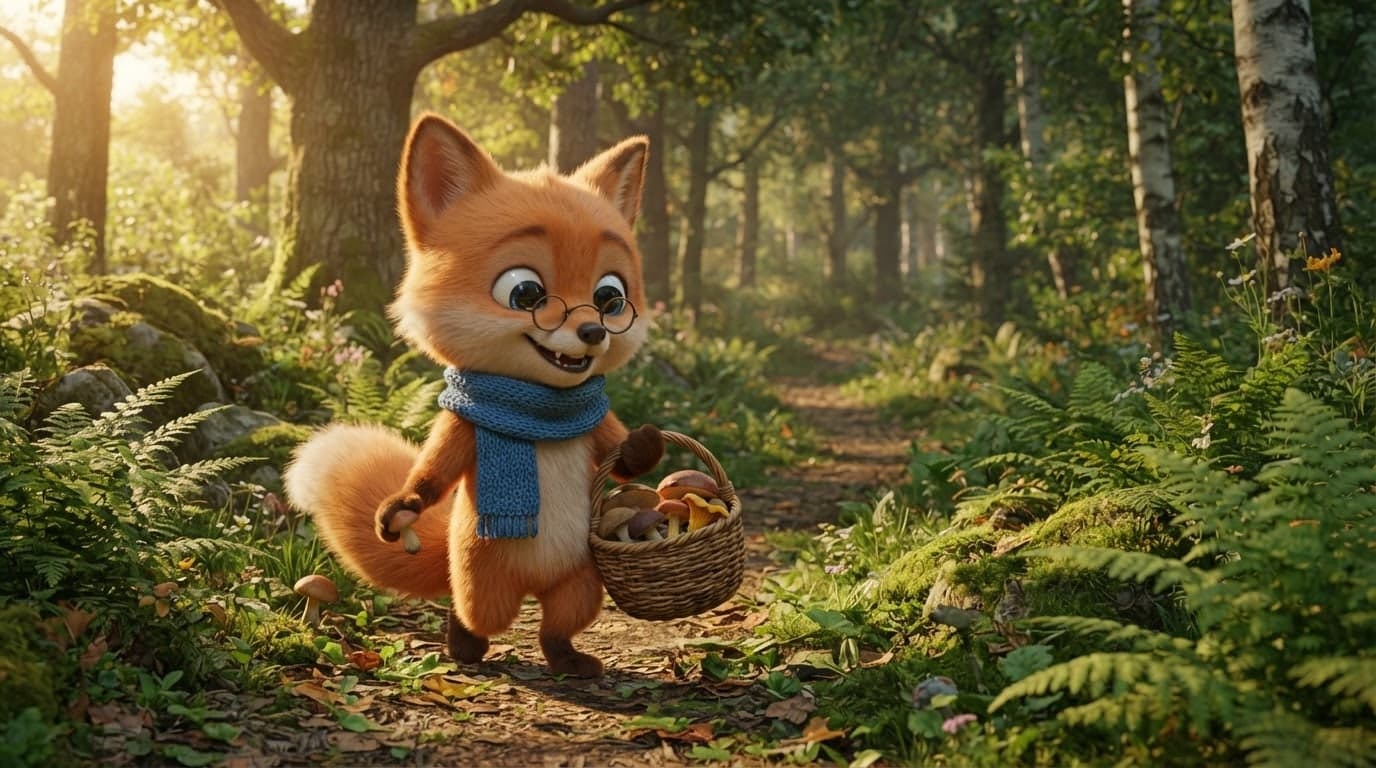
Cartoon prompts: 10 ready-to-use prompts for ChatGPT and Gemini
How it works in 3 steps
Start with one sentence and refine the result with the settings.
Write your prompt
Describe what you want to see with colors, light, setting and style. Not sure what to write? Pick a template, answer a few questions and Canvas writes the prompt.
Pick your settings
Choose the aspect ratio, the number of images (1 to 4), the model, the style and the color palette. You can also add your own photo and start from it.
Create and download
When the images are ready they appear in your gallery. You can edit them, use one as a reference for a new image or download them.
Frequently asked questions
Is Canvas free?
The Free plan gives you 10 image credits every month. An image costs 2 credits on Auto and 1 on EntroGen Flash. Credits renew every billing period, and paid plans include more monthly credits.
Which models can I create images with?
EntroGen models (Auto and EntroGen Flash) are included in your plan and use image credits. Premium models are available on paid plans and are paid from your balance; the list shows an approximate price per image.
Can I edit my own photo?
Yes. You can add up to 4 images. Use the image you added as a reference for a new image, or change the image itself, for example "make the background white" or "put the product on marble".
What sizes can I download?
SD (JPG) and HD (PNG) downloads are free on every plan. 2K and 4K downloads are on paid plans and cost 2 and 4 credits. Downloading the same image again at the same size uses no credits.
How do I add an image I created to my site?
Download the image, add it to the chat in the Builder and say where it should go. For example: "Use this image as the background of the hero section."