Mortgage calculator prompt: loan calculator with amortization schedule
A mortgage calculator and loan calculator website prompt with monthly payment, amortization schedule, CSV download and term comparison. Works in Entrobase and other AI website builders.
Prompt
Fill in the fields below and the prompt updates instantly. Copy it and use it in any AI tool.
Build a single-page loan calculator website called Payment Compass. Focus: mortgage. Goal: visitors enter the amount, term and interest rate and instantly see the monthly payment, total repayment and a month-by-month amortization schedule.
Sections in ordertop menu (links that scroll to sections), calculator in the hero, amortization schedule table, term comparison, how it is calculated, FAQ, footer.
Designlight and trustworthy: off-white background, navy text, thin grey rules. Main color #0b8f6a; use it for buttons, sliders and result highlights. Typography: clean geometric headings and tabular figures for numbers; cards with 12 px corners and a soft shadow.
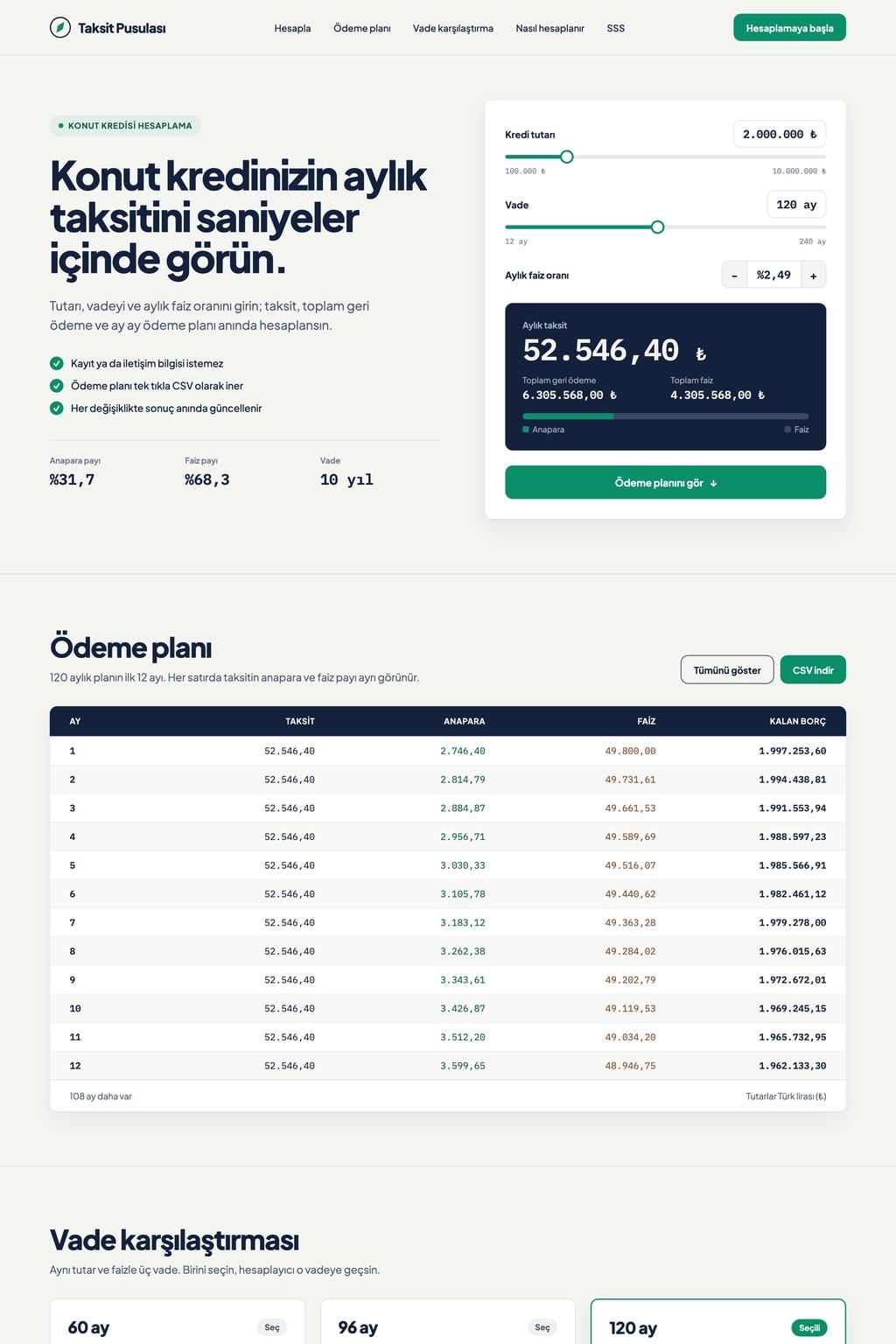
Hero (the core component): a headline naming the loan type and a one-sentence intro on the left, the calculator card on the right. The card has loan amount, term (months) and annual interest rate (%) fields; amount and term each have a slider and a number box that stay in sync. Starting values are realistic for the loan type (e.g. mortgage 300,000 over 360 months, personal loan 15,000 over 36 months, car loan 30,000 over 60 months, small business loan 100,000 over 60 months; sample rate 6.5% a year). Every change updates the result instantly: the monthly payment in large type, total repayment and total interest below it, and a horizontal bar showing the split between principal and interest.
Mathmonthly payment = P × r × (1 + r)^n / ((1 + r)^n - 1); P is the amount, r is the annual rate / 12 / 100, n is the number of months; if the rate is zero, payment = P / n.
Amortization schedulepayment, principal, interest and remaining balance for every month; show the first 12 rows, a "Show all" button expands the table and a "Download CSV" button saves it as a file.
Term comparisonwith the same amount and rate, show the monthly payment and total interest for 3 different terms side by side; clicking one switches the calculator to that term.
How it is calculated: explain the formula in 3 short plain-language steps. FAQ: 5 questions in an accordion.
Contentcurrency US dollar ($); format amounts in English number style (1,250,000.00). Do not use real bank names, current rate claims or phrases like "lowest rate". Footer note: results are for information only; taxes, fees and insurance are not included, ask your lender for an exact quote.
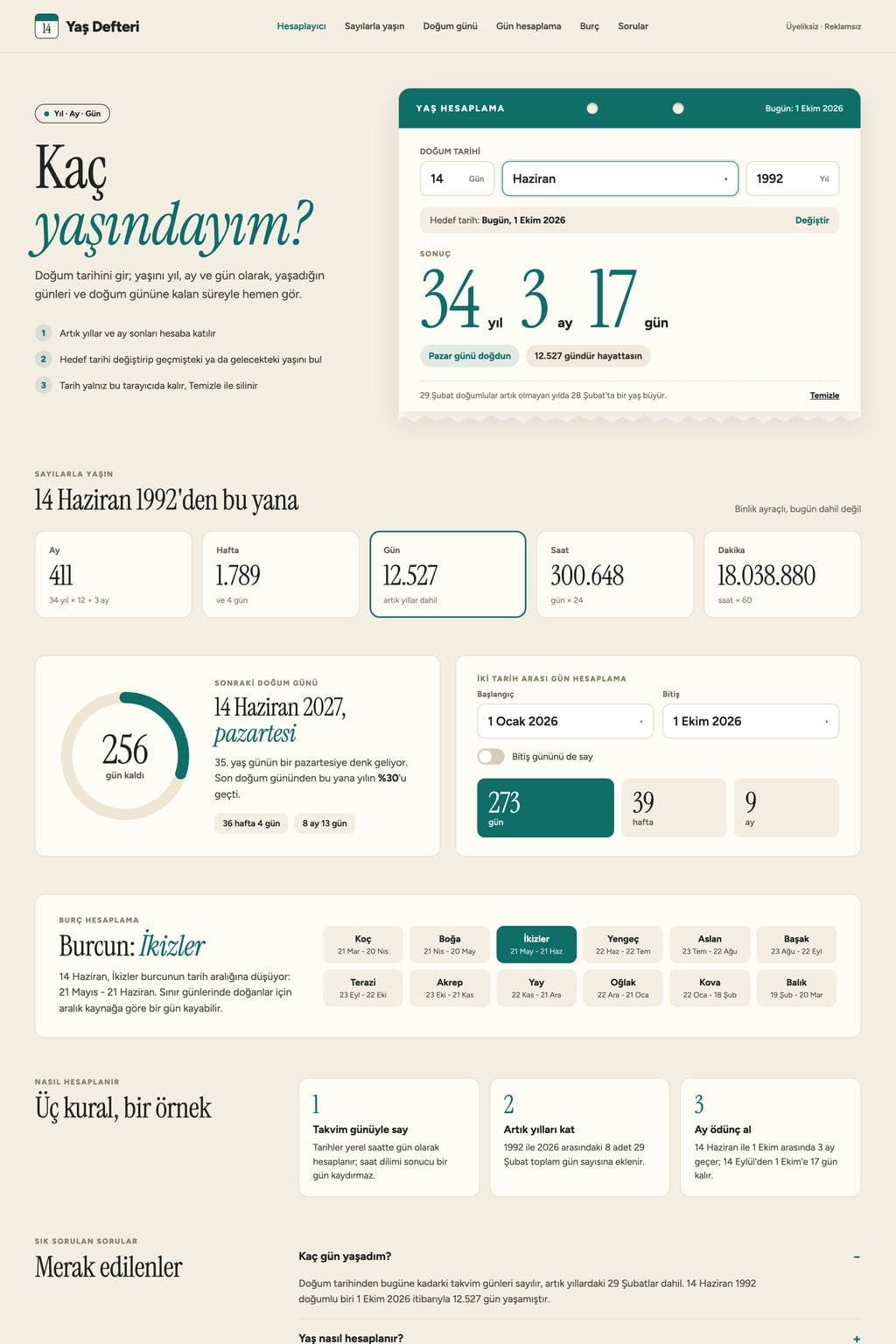
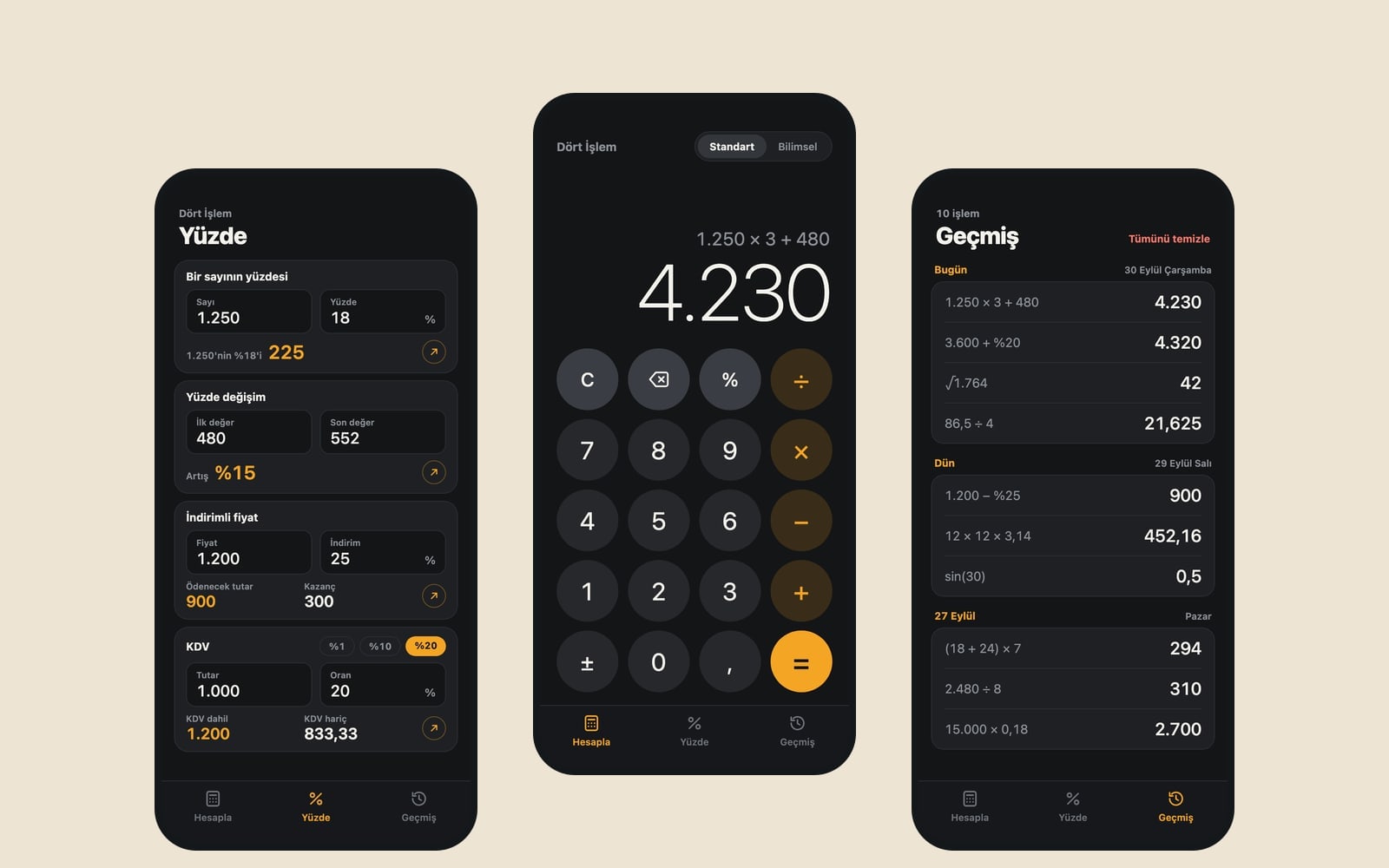
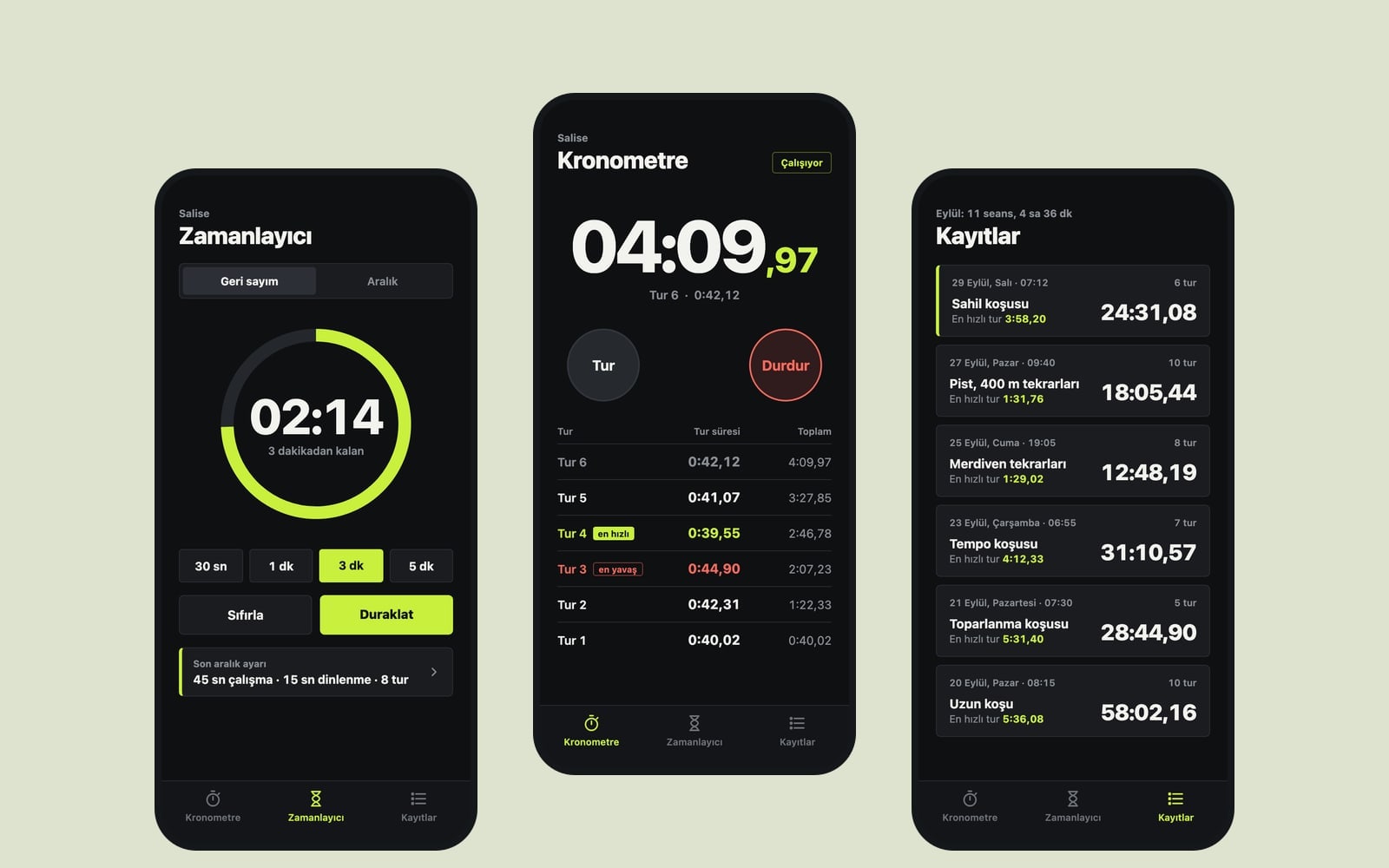
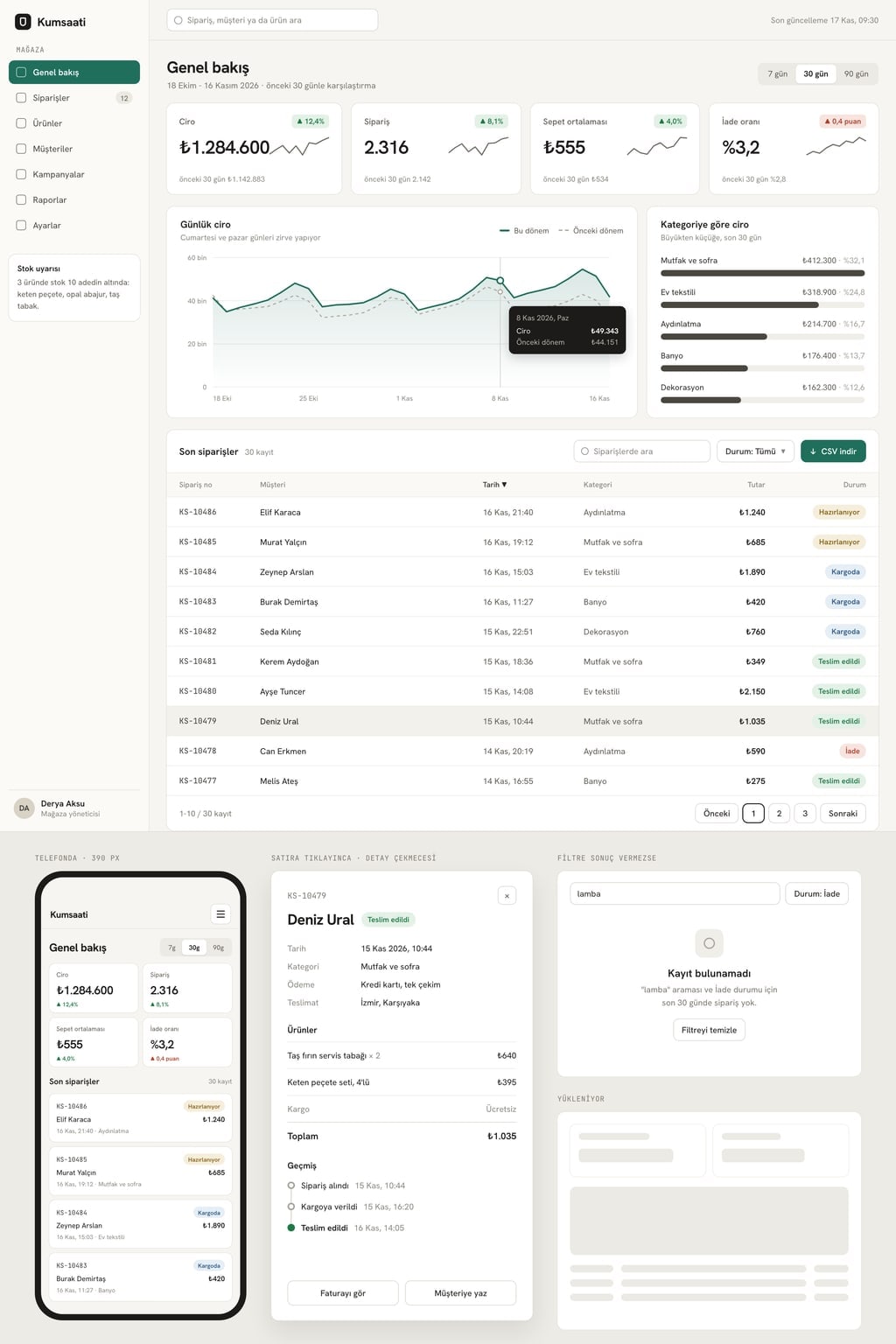
Design preview made from this prompt
What this prompt does
This prompt builds a single-page loan calculator website: enter the amount, term and annual interest rate and the monthly payment, total repayment and total interest update instantly, with a month-by-month amortization schedule that downloads as CSV. You can focus it on a mortgage, personal loan, car loan or small business loan. It suits real estate agents, personal finance site owners and anyone building a calculator to attract search visitors; results are for information only.
Where to use it
- Tool for a real estate site
- Calculator for a finance blog
- Car dealer payment estimator
- Personal budget planning
- Search traffic from a calculator
Fields you can fill in
The fields you can change in the form above and their default values.
- Site nameFree text
- Payment Compass
- Loan typeOne of 4 options
- mortgage
- CurrencyFree text
- US dollar ($)
- ThemeOne of 4 options
- light and trustworthy: off-white background, navy text, thin grey rules
- Main colorColor
- #0b8f6a
Step by step
- 1
Choose the Site name and Loan type
The Site name appears in the top menu and the headline. Loan type (mortgage, personal, car or small business) sets the headline and the starting values: a mortgage opens at 300,000 over 360 months and a personal loan at 15,000 over 36 months, with a sample rate of 6.5% a year.
- 2
Set the Currency and Theme
Write both the name and the symbol in Currency, like "US dollar ($)"; amounts are shown as 1,250,000.00. Theme offers light and trustworthy, dark and calm, warm and simple, or bold and modern, and the Main color goes on buttons, sliders and result highlights.
- 3
Build the site in the Entrobase Builder
"Build a site with this" takes the prompt to the Entrobase Builder, which writes the page; you ask for changes in chat (a free account is required). If you use another tool, press "Copy" and paste the text there.
- 4
Check the math by hand
Enter an example you know and compare it with the formula in the prompt: payment = P × r × (1 + r)^n / ((1 + r)^n - 1), where r is the annual rate / 12 / 100 (6.5% gives about 0.0054). Also set the rate to zero and check that the payment equals the amount divided by the months.
- 5
Test the table, CSV and term comparison
Check that the schedule shows the first 12 rows, "Show all" expands it, "Download CSV" saves the file and the last row ends at a zero balance. Clicking a card in the term comparison should switch the calculator to that term.
Tips and variations
- To add a down payment, add "home price and down payment fields, with the loan amount calculated from both" to the copied text; mortgage shoppers usually start from the price of the home.
- For a real estate site, choose mortgage as the Loan type and ask in chat for a contact button under the calculator, such as "Book a viewing".
- If your market quotes monthly rates, change the field to "monthly interest rate (%)" and r to "monthly rate / 100" in the same edit; changing only one of them gives wrong payments.
- Keep the footer note. Loan math is a financial topic, and visitors need to see that results are for information only and that taxes, fees and insurance are not included.
Frequently asked questions
How is a monthly loan payment calculated?
For a fixed-payment loan, the monthly payment comes from this formula: payment = P × r × (1 + r)^n / ((1 + r)^n - 1). P is the loan amount, r is the annual rate divided by 12 and by 100, and n is the number of months. The prompt builds the calculator on this formula and explains it in 3 steps.
Will the result match my lender's quote?
Not necessarily. The prompt has the footer state that taxes, fees and insurance are not included, and lenders add those along with their own rates. The site gives an estimate; ask your lender for an exact figure.
Can the calculator site show current interest rates?
The prompt rules out current rate claims and real bank names, because rates change often and outdated figures mislead visitors. The calculator opens with a sample rate of 6.5% a year and users enter their own.
Can I open the amortization schedule in Excel?
Yes. The "Download CSV" button saves the table as a CSV file, which opens in Excel, Google Sheets and similar programs. If number formatting gets in the way, ask in chat for the CSV to use plain numbers.
Can I build a loan calculator site without coding?
Yes. With "Build a site with this", the Entrobase Builder writes the calculator, the table and the other sections, and you describe any changes in chat. A free account is required.