Aesthetic wallpaper prompt: phone lock screen wallpaper
An aesthetic wallpaper prompt for a text-free phone wallpaper: a macro photo lock screen wallpaper in warm, pastel or dark tones. Works in Gemini, ChatGPT and Entrobase Canvas.
Prompt
Fill in the fields below and the prompt updates instantly. Copy it and use it in any AI tool.
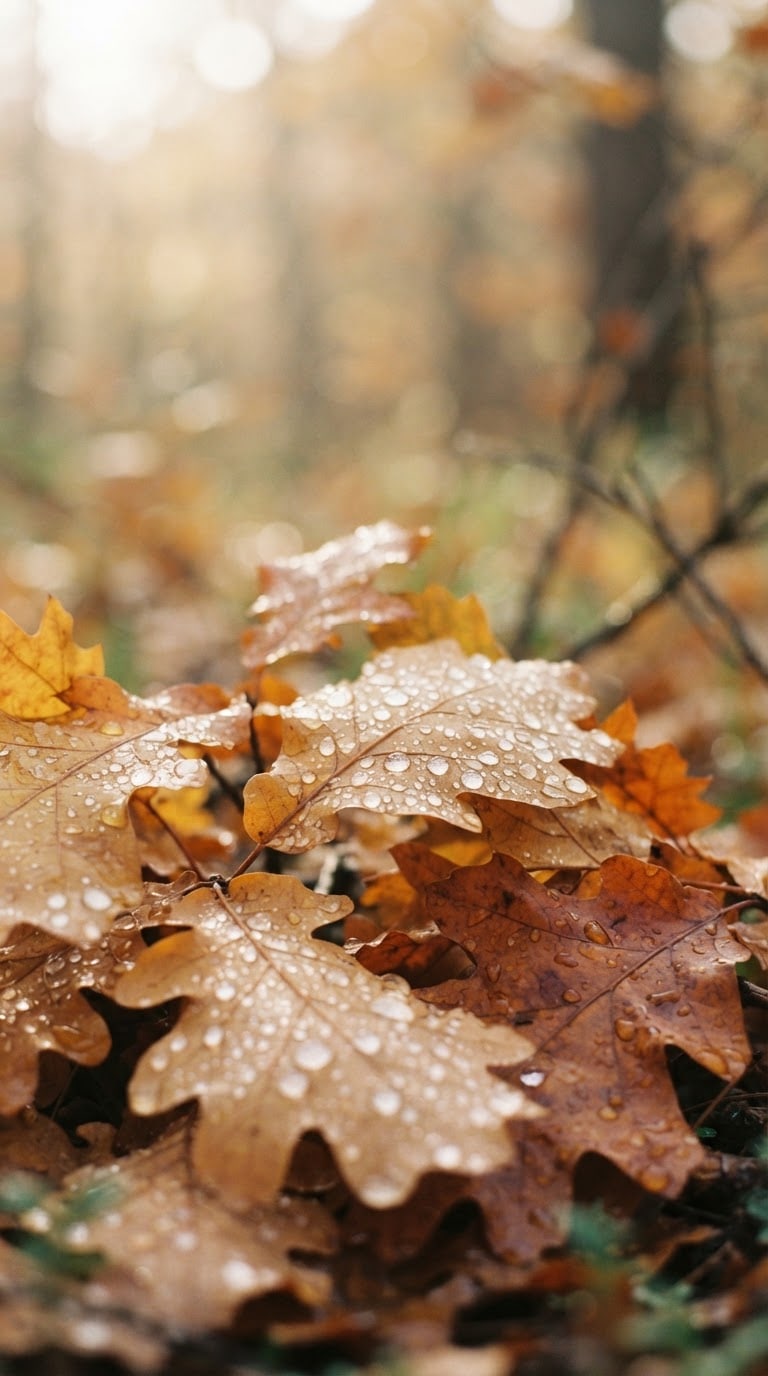
The aesthetic photo itself, made to be used as a phone wallpaper: one full-bleed frame, edge to edge, completely free of text, icons and frames. Subject: autumn leaves covered in dewdrops. Setting: a plain, softly blurred background; the subject is the only thing that stands out. Light: soft natural light from the upper left, delicate highlights on the subject and gently graded shadows. Camera: close-up, 100 mm macro lens feel, shallow depth of field; the subject sharp and in focus, the background creamy bokeh. Style: an analog film photo with light grain and soft contrast. Color palette: honey yellow, burnt orange and brown tones; a restrained, harmonious color scheme across the whole frame. Composition: vertical frame; the subject sits centered in the lower half, while the upper third stays open as a plain, smooth, low-detail background. Aspect ratio 9:16.
Image made with this prompt
What this prompt does
This prompt creates a macro photo phone wallpaper with no text, icons or frames. The subject sits in the lower half and the top third is left plain, so the clock and notifications on your lock screen sit cleanly over it. It is for anyone who wants a personal, calm lock screen wallpaper with a limited color palette.
Where to use it
- Lock screen wallpaper
- Home screen background
- Seasonal wallpaper sets
- A dark, minimal phone background
- Backdrop for stories and status posts
Fields you can fill in
The fields you can change in the form above and their default values.
- SubjectOne of 5 options
- autumn leaves covered in dewdrops
- Color paletteOne of 5 options
- honey yellow, burnt orange and brown tones
- Photo styleOne of 4 options
- an analog film photo with light grain and soft contrast
- Aspect ratioOne of 4 options
- 9:16
Step by step
- 1
Pick a subject
Under Subject, choose dewy autumn leaves, dried wildflowers in a glass vase, a foamy wave edge, drifting dandelion seeds or a frosted pine branch. Each is a single subject that suits a macro shot, and the prompt keeps the background plain and blurred.
- 2
Match the palette and photo style
Color palette and Photo style work together: near-black dark tones pair naturally with the dark, moody style, and powder pink fits the dreamy soft-focus look. Start with one pairing, then change a single option at a time.
- 3
Set the ratio for your phone
Start with 9:16 under Aspect ratio, the tallest option here. 2:3, 3:4 and 4:5 are shorter frames that your phone will crop to fit. When you set the wallpaper, you can drag the image so the subject sits below the clock.
- 4
Generate in Entro Canvas with Start
Start takes the prompt to Entro Canvas, where you sign in, choose the ratio and style and generate. Keep the Canvas ratio the same as Aspect ratio in the form. You can also Copy the prompt into Gemini or ChatGPT.
- 5
Check the top area on your lock screen
Save the image and try it as your lock screen: the clock and date should sit over the plain top third with the subject below. If the subject ends up behind the clock, change the prompt to “the subject in the lower third” and generate again.
Tips and variations
- Make a matching home screen version: keep Subject and Color palette and switch Photo style to the dreamy soft-focus option. A hazier image looks less busy behind app icons.
- For a subject that is not on the list, edit the Subject line after pasting. Small things that stand alone, such as a single coffee bean, a seashell or a wet rose petal, suit the macro setup well.
- Build a seasonal set: leaves with the warm palette in autumn, the frosted pine with the cool palette in winter, wildflowers with the green palette in spring. Keeping the same Photo style ties the set together.
- To change the light, replace “from the upper left” with “backlight from behind” after pasting; dewdrops and dandelion seeds get softly glowing edges.
Frequently asked questions
What aspect ratio should a phone wallpaper be?
9:16 is a good starting point for a lock screen; most phones are a little taller, so expect a small crop at the edges. 2:3, 3:4 and 4:5 give shorter frames; choose one of them if you also want to print the image.
Will the lock screen clock cover the image?
The prompt puts the subject in the lower half and keeps the top third as a plain, smooth background, which leaves room for the clock and date. Results can still vary, so try the image on your lock screen before settling on it.
Does this wallpaper prompt work in Gemini and ChatGPT?
Yes, Copy it into either one. Some tools do not always follow a ratio written in the text; if the ratio is off, use the tool's own aspect ratio setting. In Entro Canvas you choose the ratio yourself before generating.
What if text or a logo shows up in the image?
The prompt asks for no text, icons or frames, but models sometimes add small letters or marks anyway. If that happens, generate again, or move the no-text sentence to the start of the prompt to give it more weight.