10 YouTube Thumbnail Prompts for ChatGPT and Gemini
YouTube thumbnail prompts: a fill-in main prompt plus 9 copy-paste prompts for face thumbnails, gaming, Shorts, tutorials, series templates and thumbnail to prompt in ChatGPT, Gemini and Entrobase Canvas.
Tested: EntroGen Flash, November 2026
Prompt
Fill in the fields below and the prompt updates instantly. Copy it and use it in any AI tool.
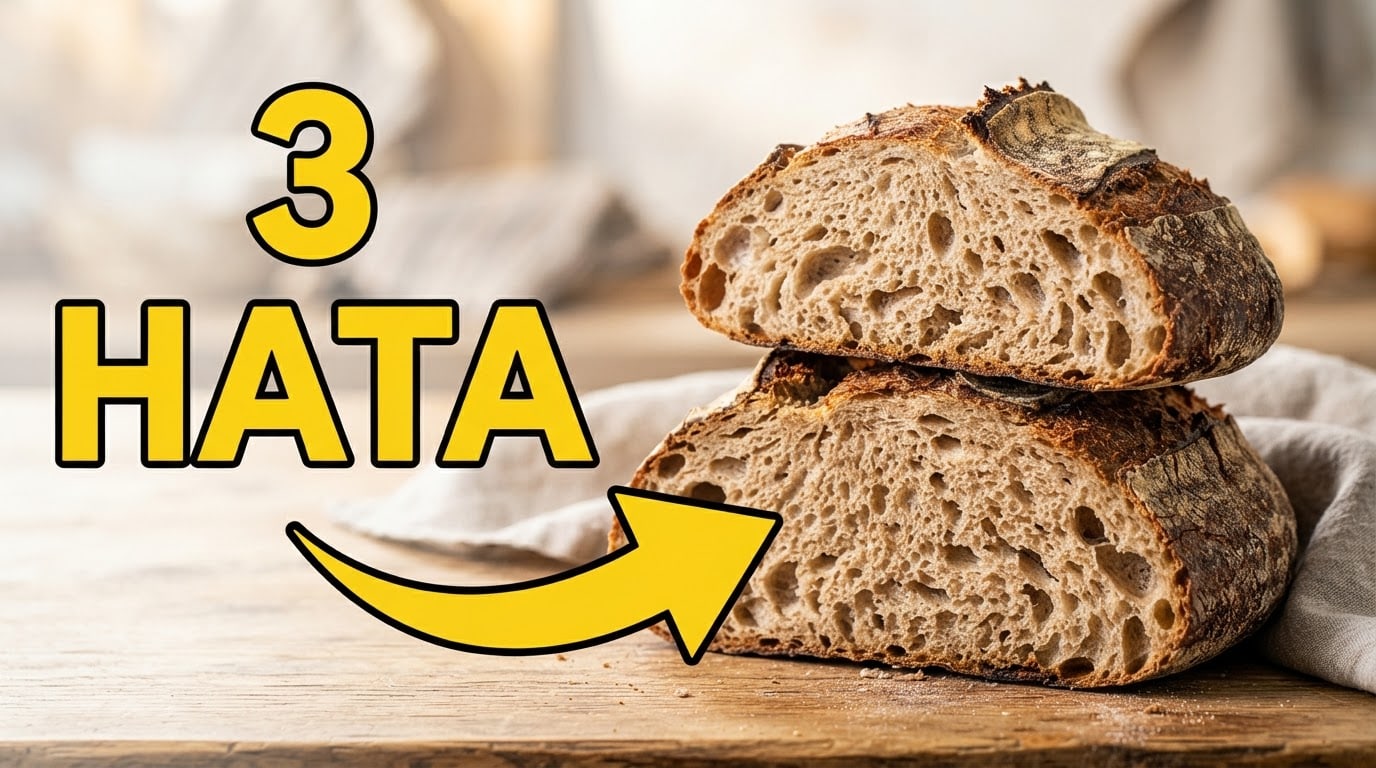
Create the image itself, edge to edge, to be used as a video thumbnail.
Main subjecta crusty sourdough loaf cut in half, its open crumb showing; unlabeled and unbranded, the sharpest element in the frame.
Textthe only text in the image is "3 MISTAKES"; bold block capitals in #ffd21f, thick black outline, large enough to read on a small screen.
Layoutsubject large on the right half, text on the left half in two lines.
Accentone thick arrow in the text color, pointing at the subject's key detail.
Backgroundthe subject's natural setting, softly blurred; it simplifies and continues behind the text.
Lightbright key light from the front, strong rim light behind; light source out of frame.
Cameraclose-up, 50 mm, subject sharp.
Stylea bright, saturated, high-contrast photorealistic thumbnail photo.
Palettethe subject's colors, the background tone and the accent color; three main colors at most.
Surfacesapart from the text, no letters, numbers or symbols.
Framingno people; only the subject, the arrow and the text; the image runs to all four edges, no border.
Aspect ratio 169.
Image made with this prompt
9 more ready-to-use prompts
Different takes on the same topic. Copy any of them as is and replace the parts in square brackets.
1.Gemini YouTube thumbnail prompt with your face
When to use: Use this when you want your own face and reaction on the thumbnail and have a clear photo of yourself.
Create a YouTube thumbnail that keeps the person in my uploaded photo.
- Person
- same face, hair and clothes as the photo; [surprised / excited / serious] expression; head and shoulders, in the right third of the frame.
- Object
- one object that explains the video [e.g. an open laptop] on the left.
- Text
- the only text is "[UP TO 3 WORDS]", bold capitals, yellow, thick black outline.
- Background
- dark and simple, a strong rim light behind the person.
Rules
- face and text readable on a small screen
- no logos, play button or extra text
- Aspect ratio
- 16:9
Upload your photo first, then paste this prompt.
2.ChatGPT YouTube thumbnail prompt: 3 concepts from your title
When to use: Use this when you are not sure what to show and want ideas first, then the image.
We are designing a YouTube thumbnail.
- Video title
- [e.g. 3 Sourdough Mistakes Everyone Makes]
- Channel type
- [e.g. home cooking]
First write 3 different thumbnail concepts, each with:
- 1Main subject (one object or scene)
- 2Thumbnail text (up to 3 words, not repeating the title)
- 3Layout and colors
When I pick one, generate it as a 16:9 image.
Rules
- bold capital text with strong contrast
- no other text, logos or play button in the image
3.YouTube thumbnail prompt generator for ChatGPT or Gemini
When to use: Use this when you would rather give a title and get a finished thumbnail prompt than write one for every video.
You are a designer who writes prompts for YouTube thumbnails.
Write one image generation prompt from these details:
- Video title
- [title]
- Channel type
- [e.g. tech reviews]
- Audience
- [e.g. beginners]
The prompt must state clearly:
- 1The main subject and where it sits
- 2Thumbnail text of up to 3 words, its color and outline
- 3Background, lighting and a palette of three colors at most
- 4A 16:9 aspect ratio
Return it as one block, then generate the image in the same chat.
4.Gaming thumbnail prompt for Gemini
When to use: Use this for gameplay videos, stream highlights or game reviews that need an energetic thumbnail.
Create a YouTube thumbnail for a gaming video.
- Scene
- [e.g. a neon sci-fi arena], an original game character in the foreground, mid-action.
- Effects
- an energy burst and speed lines behind the character.
- Text
- the only text is "[e.g. VICTORY]", bold italic capitals, white with a purple outline, top left.
- Colors
- dark purple background, neon cyan and pink accents.
Rules
- no real game logos, HUD or score text
- the character does not resemble any known game character
- Aspect ratio
- 16:9
5.YouTube thumbnail to prompt: reverse a thumbnail you like
When to use: Use this when you like the layout and mood of another thumbnail and want something similar but original for your video.
Study the thumbnail I uploaded and write a prompt that could recreate it.
Describe each on its own line:
- 1Layout (where the subject and text sit)
- 2Color palette and lighting
- 3Lettering (size, color, outline)
- 4Style (photo, 3D, illustration)
Then adapt that prompt to my video: topic [e.g. camping gear], text "[UP TO 3 WORDS]".
Rules
- do not copy the person, logos or text in the image
- keep only the layout and mood
- Aspect ratio
- 16:9
6.YouTube thumbnail prompt template for a consistent series
When to use: Use this when you publish a series and want every episode thumbnail to share the same look.
Create the first thumbnail of a series and keep this template for every episode.
Template
- left 40%: a flat [e.g. deep green] panel with the episode number "[e.g. 01]" in large white numerals
- right 60%: the episode's main subject [e.g. a cast iron pan with a seared steak], close-up, rim light
- one thick yellow arrow from the panel to the subject
- Text
- only the episode number, no other words.
- Style
- bright, saturated photo.
- Aspect ratio
- 16:9
For the next episodes I will only send a new subject and number.
7.YouTube Shorts thumbnail prompt (9:16)
When to use: Use this when you need a vertical cover that looks clean on your channel page and in the Shorts shelf.
Create a vertical cover image for a YouTube Short.
- Main subject
- [e.g. a layered iced coffee in a tall glass], large and centered.
- Text
- the only text is "[e.g. 30 SECONDS]" in the top third, bold capitals, white, black outline.
- Background
- the subject's setting, softly blurred.
- Composition
- keep the bottom edge simple; important elements stay in the center.
Rules
- no logos, play button or extra text
- Aspect ratio
- 9:16
8.Tutorial thumbnail prompt with a screenshot and step number
When to use: Use this for how-to, software or lesson videos where a screenshot should appear on the thumbnail.
Create a tutorial thumbnail using the screenshot I uploaded.
- Screen
- place it as a slightly tilted card on the right half, with a soft shadow.
- Badge
- a large round badge with the number "[e.g. 5]" top left.
- Text
- under the badge, "[e.g. STEPS]" in bold capitals.
- Background
- flat [e.g. navy] with a gentle light gradient.
Rules
- do not rewrite the small text in the screenshot
- add no other text
- Aspect ratio
- 16:9
Upload your screenshot first, then paste this prompt.
9.Product review thumbnail prompt: unboxing and comparison
When to use: Use this when you review, unbox or compare a product and want the product to carry the thumbnail.
Create a YouTube thumbnail for a product review video.
- Product
- [e.g. matte black wireless headphones], unbranded, no logo, large on the right half.
- Scene
- an opened plain cardboard box on a dark desk, the product in front of it.
- Text
- the only text is "[e.g. WORTH IT?]" on the left half, bold capitals, yellow, black outline.
- Light
- a rim light that defines the product's edges.
Rules
- no real brands, logos or price text
- no other text
- Aspect ratio
- 16:9
What this prompt does
If you want a YouTube thumbnail that gets the click, paste one of the 9 prompts below into ChatGPT or Gemini: thumbnails with your own face, gaming, Shorts, tutorials, a reusable series template, thumbnail to prompt and a prompt generator. The main prompt above needs no photo of a person; it builds a 16:9 thumbnail from one subject, a big text of up to three words and a single arrow.
Where to use it
- YouTube video thumbnail
- YouTube Shorts cover
- Cooking and recipe channel
- Tutorial and how-to video
- Product review video
- Podcast episode cover
Fields you can fill in
The fields you can change in the form above and their default values.
- Main subjectFree text
- a crusty sourdough loaf cut in half, its open crumb showing
- Thumbnail textFree text
- 3 MISTAKES
- Text and arrow colorColor
- #ffd21f
- LayoutOne of 3 options
- subject large on the right half, text on the left half in two lines
- StyleOne of 5 options
- a bright, saturated, high-contrast photorealistic thumbnail photo
Step by step
- 1
Describe the video with one subject
In the Main subject field, write the one object that explains the video at a glance, with its material and state (a crusty sourdough loaf, an old laptop with its lid open). One subject reads on a phone; a scene with four objects turns into noise at 120 pixels wide.
- 2
Keep the thumbnail text to three words
The thumbnail text should not repeat the video title; it should create curiosity: 3 MISTAKES, 30 DAYS, BEFORE AFTER. Image models render short, all-caps text far more reliably than long lines, which tend to drop or invent letters.
- 3
Pick a layout and style for the video
Use subject right, text left for recipes and product videos; the split layout for transformations; subject centered when one result tells the story. The bright style stands out in a busy feed, cinematic suits documentaries and storytelling, 3D render suits tech channels.
- 4
Copy it or generate in Canvas
Copy the prompt into ChatGPT or Gemini, or press Start to generate it in Entrobase Canvas. If you want your own face on the thumbnail, use the Gemini face prompt below instead and upload your photo first.
- 5
Test it small
Open the image at a small size on your phone: if the text reads in a second, the subject stands apart from the background and the arrow points at the right detail, it is ready. Before uploading, check the 16:9 ratio and a width of at least 640 pixels.
Tips and variations
- According to YouTube Help, a video thumbnail is 16:9, JPG or PNG, and at least 640 pixels wide; custom thumbnails are only available on verified accounts.
- Pick a text color that contrasts with the background: yellow or white on dark, navy or red on light. The black outline keeps the text readable at small sizes either way.
- For a consistent series, keep the thumbnail you like in the same chat and change only the subject and the text; the colors, layout and lettering stay the same across every video.
- Keep important elements out of the bottom right corner, where YouTube shows the video length. Placing the arrow and the text in the left or top half avoids the overlap.
- Generate two thumbnails for the same video, one with the subject-right layout and one split, then look at them side by side on your phone; the one you read faster is usually the better choice.
Frequently asked questions
How do I make a YouTube thumbnail with ChatGPT?
Paste the ChatGPT prompt from this page into a chat with image generation turned on. It first writes three thumbnail concepts from your video title, and once you pick one it generates the image in 16:9. You can also upload a photo of yourself to put your face on the thumbnail.
Can Gemini create YouTube thumbnails with my face?
Yes. Upload a clear photo of yourself and paste the Gemini face prompt. According to Google's Gemini image generation docs, Gemini 3.1 Flash Image can use up to 4 character images in one generation, so a few photos from different angles help keep your likeness.
What size should a YouTube thumbnail be?
YouTube Help lists a 16:9 ratio with a minimum width of 640 pixels, in JPG or PNG, with a 2 MB limit on mobile and 50 MB on desktop. Shorts thumbnails are 9:16 and podcast thumbnails are 1:1.
What is a YouTube thumbnail prompt generator?
It is a prompt that writes your thumbnail prompt for you: give it your video title, channel type and audience, and ChatGPT or Gemini returns a ready prompt with the subject, text, layout and colors decided. The generator prompt on this page does exactly that, and you can turn the result into an image in the same chat.
Why is the text on my AI thumbnail misspelled?
Image models drop or invent letters in long text. That is why the main prompt asks for a single all-caps text of up to three words. If the letters still come out wrong, clear the text field, generate the image without text and add the words in a design tool.