Wedding invitation prompt: digital wedding website with RSVP
A wedding invitation prompt for a digital wedding website with a countdown, schedule, directions, add to calendar and an RSVP form. Works in Entrobase and other AI website builders.
Prompt
Fill in the fields below and the prompt updates instantly. Copy it and use it in any AI tool.
Build a single-page digital invitation website for Olivia & Daniel. Event type: wedding. Date and time: Saturday, June 12, 2027, 7 pm. Venue: Mill Garden, Urla. Goal: guests open the link on their phone, see the date, place and schedule at a glance, and RSVP in under a minute.
Sections in orderhero, our story, schedule, venue and directions, RSVP, FAQ, footer. No top menu; a small fixed “RSVP” button in the bottom right scrolls to the RSVP section.
Designnatural and elegant (off-white background, olive green, fine serif headings). Pick the typography to match this style (an elegant display face and a simple body face); the couple's names are the largest text on the page. Thin rules or a small floral sprig between sections, soft rounded corners on cards. Design mobile first (most guests open the link from a messaging app); on desktop, a narrow centered column.
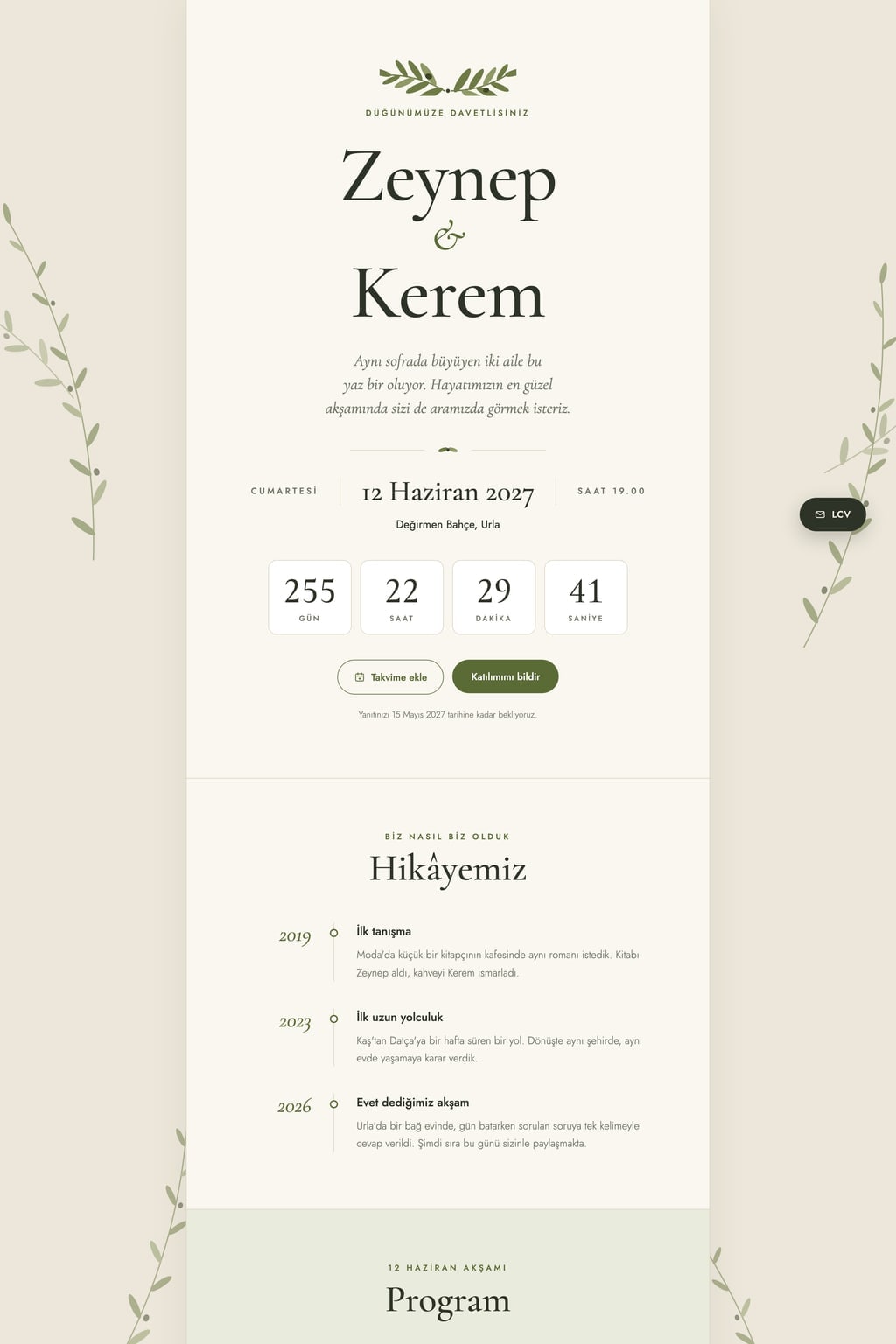
Hero (the core component): a short invitation line suited to the event type, the couple's names, the date and venue; below them a live countdown in days, hours, minutes and seconds that reads “Today is the day!” once the date has passed. Two buttons below: “Add to calendar” (builds and downloads an .ics file in the browser with the title, date, time and venue filled in) and “RSVP now” (scrolls to the RSVP section).
Our story3 short moments, each with a year and two sentences, on a vertical timeline.
Schedulea 4-5 step timed flow suited to the event type (wedding: welcome, ceremony, dinner, first dance, party; engagement party: welcome, ring exchange, cake, music; civil ceremony: welcome, ceremony, congratulations, cocktails; henna night: welcome, bride's entrance, henna ritual, party).
Venueaddress line, a “Get directions” button (a Google Maps search link with the venue name), and a note on parking and dress code.
RSVP (the working part): full name, attendance (joyfully accepts / regretfully declines), number of guests (1-4; hidden when declining), a note to the couple. The submit button does not send the form to a server: it shows a thank-you message, saves the reply in the browser (when the page is reopened it shows “Your reply: 2 guests attending · Change”) and a “Send via WhatsApp” button opens the reply as a ready message (a wa.me share link with no number).
FAQ4 questions in an accordion (children, parking, gifts, dress code).
Contentwarm, short English copy; stock photos that do not show the couple's faces (flowers, table settings, the venue, a distant couple silhouette). Do not write real phone numbers, bank account numbers or street numbers.
Design preview made from this prompt
What this prompt does
This prompt builds a single-page digital invitation that guests open on their phone, for a wedding, engagement party, civil ceremony or henna night. The hero has a live countdown and an add to calendar button, followed by your story, a timed schedule, directions and an RSVP form. It is for couples who want to share their invitation as a link.
Where to use it
- Sharing a wedding invitation by link
- Engagement party or henna night invites
- Publishing the ceremony schedule
- Collecting RSVPs
- Giving guests directions
Fields you can fill in
The fields you can change in the form above and their default values.
- Couple's namesFree text
- Olivia & Daniel
- Event typeOne of 4 options
- wedding
- Date and timeFree text
- Saturday, June 12, 2027, 7 pm
- Venue and cityFree text
- Mill Garden, Urla
- StyleOne of 5 options
- natural and elegant (off-white background, olive green, fine serif headings)
Step by step
- 1
Enter the names, date and venue
Fill in Couple's names, Date and time, and Venue and city as they should appear on the invitation. The date drives the countdown and the calendar file, so include the day, month, year and time; the venue name is used for the directions link.
- 2
Choose the event type
Under Event type, pick wedding, engagement party, civil ceremony or henna night. This changes the invitation line in the hero and the schedule: a henna night gets the bride's entrance and henna ritual, an engagement party gets the ring exchange and cake.
- 3
Pick a style and press Start
Choose natural and elegant, classic and grand, modern minimal, evening party or romantic pastel under Style. Start hands the prompt to Entrobase Builder; with a free account, Builder writes the page and you ask for changes in the chat.
- 4
Replace the story and FAQ with your own
The story moments and FAQ answers Builder writes are placeholders. In the chat, give it the year you met, the dress code and your notes on children and parking, and decide yourself how the gifts question should be answered.
- 5
Test the RSVP form and calendar button
Submit the form once, then reopen the page and check that the “Your reply” line shows. Make sure “Send via WhatsApp” opens the reply as a ready message and that “Add to calendar” downloads an .ics file with the right date.
Tips and variations
- Replies are saved only in each guest's browser and reach you as WhatsApp messages. To see them all in one place, ask the Builder chat to add a link to a Google Form in the RSVP section.
- Make two matching pages from the same prompt: change Event type and the date for the henna night and the wedding, and keep Style the same. The two invitations look like a set.
- The prompt asks for photos that do not show the couple's faces. Since a link can travel beyond your guest list, keeping that default is a sensible privacy choice.
- Keep the page after the big day: ask the Builder chat to swap the countdown for a thank-you note and a photo gallery once the date has passed.
Frequently asked questions
How do I send a digital wedding invitation?
A digital invitation is a web page, so you send its link by WhatsApp, text message or email. The prompt designs the page for phones first, so guests who open the link from a messaging app see the date, place and schedule at a glance.
How do RSVP replies reach me?
The prompt does not send the form to a server: each reply is saved in the guest's browser and the “Send via WhatsApp” button opens it as a ready message. You hear about it when the guest sends that message; for a single list of replies, add a separate form link.
What does RSVP mean on an invitation?
RSVP comes from the French “répondez s'il vous plaît”, meaning please reply, and asks guests to say whether they will attend. On this site the RSVP section has fields for full name, attendance, number of guests and a note to the couple.
Which calendars does the add to calendar button work with?
The .ics file is a standard calendar format that Google Calendar, Apple Calendar and Outlook can open. The prompt has the file built in the browser with the title, date, time and venue already filled in.
Should I put a phone number or bank details on the invitation?
The prompt keeps real phone numbers, bank account numbers and street numbers off the page. A shared link can reach people beyond your guest list, so it is safer to give those details to guests separately.