ChatGPT Timeline Prompts: 8 Ready-to-Use Prompts (2026)
8 timeline prompts: timeline infographics, project roadmaps, company history, history lessons and launch schedules; works in ChatGPT, Gemini and Entrobase Canvas.
Tested: EntroGen Flash, November 2026
Prompt
Fill in the fields below and the prompt updates instantly. Copy it and use it in any AI tool.
Create a timeline infographic with text to be added later.
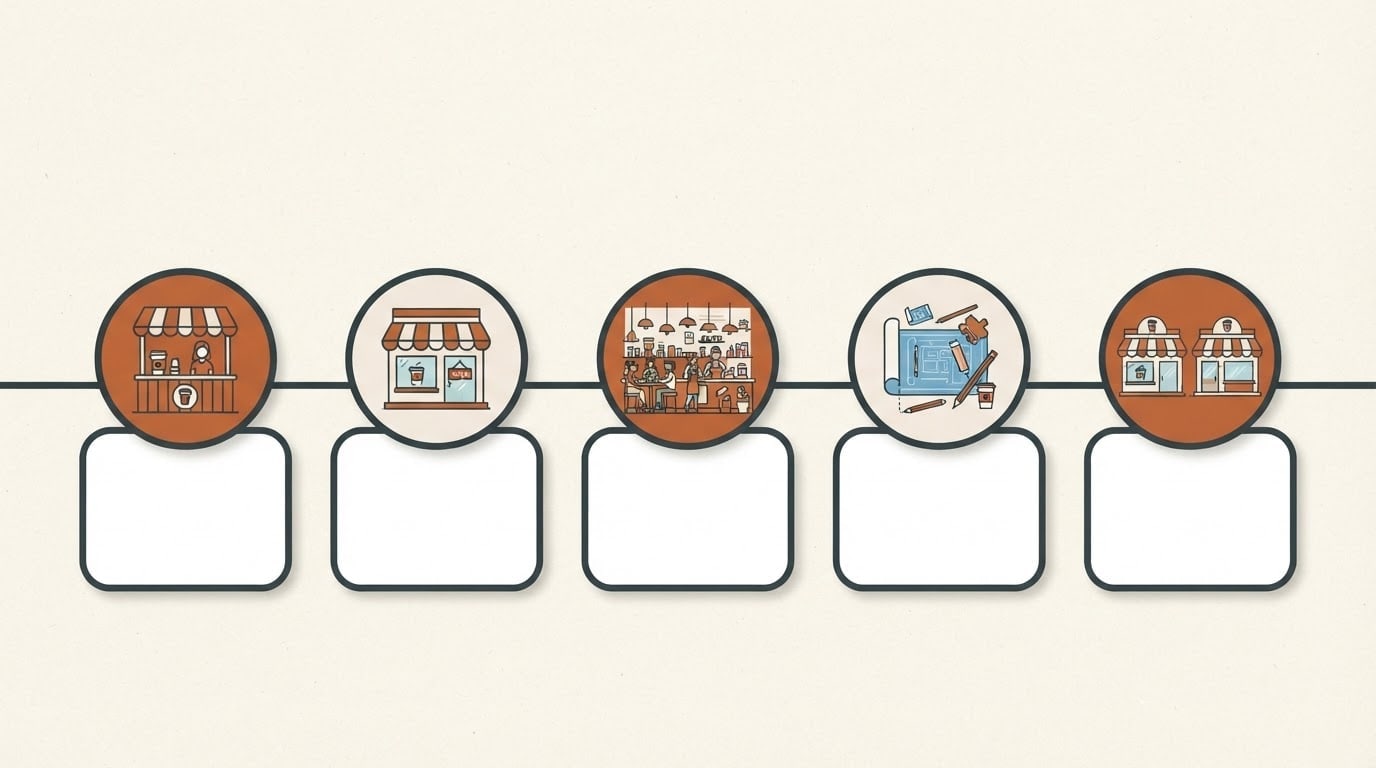
Topica coffee shop's growth from its first counter to a second branch; each stop's icon shows one stage.
Layoutalong a straight horizontal line, 5 stops from left to right; each stop has a round icon badge with an empty, rounded, flat label card right below it.
Styleflat-color modern vector infographic.
Backgroundlight cream with a fine paper texture; the top area is a plain continuation of the same background, left open for a title.
Lightflat, even lighting with small soft shadows.
Palettemain color #c0663b, dark charcoal lines and one light accent tone.
Compositionthe timeline across the middle band of the image, five stops evenly spaced, margins at the edges.
Textno text, numbers or letters in the image; the label cards are empty.
Aspect ratio 16:9.
Image made with this prompt
7 more ready-to-use prompts
Different takes on the same topic. Copy any of them as is and replace the parts in square brackets.
1.Timeline prompt for ChatGPT: write the content table
When to use: When you want the dates, titles and short descriptions ready before the image.
Prepare the content of a 5-stop timeline for [topic, e.g. our company's story from founding to today].
- Context
- [e.g. a coffee shop that opened in 2019 with a single counter].
- Output
- a table with columns Date, Title (3 words max), Description (one sentence).
Rules
- Do not invent dates you do not know; mark them [?].
- Titles short, using action words.
2.Timeline prompt for Gemini: short-label timeline
When to use: When you want the labels written inside the image and each is one or two words.
Create a horizontal timeline infographic.
- Stops
- 4 stops, each with an icon.
- Labels (exactly this text)
- "[e.g. 2019]", "[e.g. 2021]", "[e.g. 2023]", "[e.g. 2025]".
- Style
- flat-color vector, generous space.
- Palette
- [e.g. navy and orange].
Rules
- No text in the image other than these labels.
- Ratio
- 16:9
3.Roadmap timeline prompt for a project
When to use: When you want to show the next stages of a project or product to a team or investors.
Create a project roadmap image.
- Layout
- a winding road from left to right with 5 flag stops and a finish flag at the end.
- Stop icons
- [e.g. idea bulb, design pen, code, test, rocket].
- Style
- soft 3D isometric.
- Cards
- an empty label card beside each stop.
- Text
- no text in the image.
- Ratio
- 16:9
4.History timeline prompt for a lesson
When to use: When students need a simple visual timeline of a period.
Create a timeline infographic for a history lesson.
- Period
- [e.g. the history of communication from writing to the printing press].
- Stops
- 5 stops, each with a simple drawing of its era (e.g. clay tablet, papyrus, parchment, manuscript, printing press).
- Style
- old paper texture, pen drawing with watercolor.
- Cards
- empty, text added later.
- Ratio
- 16:9
5.Company history timeline for an about page
When to use: When the about section of your website needs an image of your brand's journey.
Create a vertical timeline of a company's history.
- Company
- [e.g. a small workshop making handmade soap].
- Stops
- 4 stops from top to bottom; icons for the first workshop, first shop, online sales, exports.
- Style
- flat-color vector in the brand color [e.g. sage green].
- Cards
- empty, rounded corners.
- Text
- no text in the image.
- Ratio
- 4:5
6.Product launch timeline prompt
When to use: When your team needs a visual of a launch's week-by-week steps.
Create an infographic showing a product launch schedule.
- Layout
- 6 weeks on a horizontal line, an icon above each week (e.g. announcement, pre-order, samples, press, launch, feedback).
- Style
- modern flat vector with thin lines.
- Palette
- [e.g. purple and light gray].
- Cards
- an empty label card under each week.
- Text
- no text in the image.
- Ratio
- 16:9
7.Career timeline prompt for a resume or portfolio
When to use: When you want to show your career steps visually in a resume or portfolio.
Create a career timeline image.
- Steps
- 5 stops; icons for a graduation cap, a first-job briefcase, a promotion star, a moving suitcase, an own-business storefront.
- Layout
- alternating, cards above and below the line.
- Style
- minimal flat vector with one accent color [e.g. teal].
- Text
- no text in the image, cards empty.
- Ratio
- 3:2
What this prompt does
If you need a ready prompt for a timeline image, the main prompt makes a five-stop timeline infographic with icons and empty label cards, so you add dates and titles later in your slides or design tool. The 7 variants give ChatGPT and Gemini prompts for writing the content, short-label timelines, roadmaps, history lessons and launch schedules.
Where to use it
- Company history and about page
- Project roadmap slides
- History lesson material
- Product launch schedule
- Annual report page
Fields you can fill in
The fields you can change in the form above and their default values.
- TopicFree text
- a coffee shop's growth from its first counter to a second branch
- LayoutOne of 3 options
- along a straight horizontal line
- StyleOne of 4 options
- flat-color modern vector infographic
- Main colorColor
- #c0663b
- RatioOne of 3 options
- 16:9
Step by step
- 1
Think of the topic in stages
Write the start and end of the story in the Topic field (for example from the first counter to a second branch). The model spreads the icons between those ends; split the stages into five in your head so the labels fit later.
- 2
Pick the layout and style
The Layout field offers a straight line, a winding road and alternating cards. For slides, a straight line in vector style reads best; a winding road catches more attention on social media.
- 3
Generate in Canvas and check the cards
Generate in Canvas with Use Prompt and check that all five label cards are empty. If made-up letters appear, generate again with the same prompt; the icon badges stay clean.
- 4
Add the dates and titles
Bring the image into your slides or design tool and type the year and a two or three word title in each card. Adding text afterwards keeps every date correct.
Tips and variations
- Keep it to five stops; with more than seven, icons shrink and cards get cramped.
- For a vertical mobile deck or a story, switch to 4:5 and pick alternating cards so they spread to both sides.
- Write the dates and titles first with the ChatGPT variant, then use the image prompt; two separate jobs both come out better.
- If you want short labels inside the image, use the Gemini variant and give each label in quotes, two words at most.
Frequently asked questions
How do I write a timeline prompt for ChatGPT?
Give ChatGPT the topic, time span, number of stops and what each stop needs (date, title, one-line description). For an image, describe the stops with icons and empty cards and add the text later.
Can Gemini make a timeline infographic?
Yes, Gemini draws timeline images when you describe the layout, icons and cards. Short labels given word for word in quotes usually come out right; for longer descriptions, empty cards are safer.
What should a timeline prompt template include?
A good template has lines for topic, time span, number of stops, layout, style, color and ratio. The fields in the main prompt are a fillable version of that template.
Why are the timeline cards left empty?
Image models can make mistakes in long text and numbers. Generating empty cards and typing the dates afterwards keeps every number under your control.
What ratio should a timeline image use?
16:9 suits slides and the web, 4:5 suits Instagram. Google's model page lists both among the ratios Gemini 3.1 Flash Image supports.