Pixel art prompt: retro game scene for an AI pixel art generator
A pixel art prompt for a text-free retro game background; pick the scene, the light and an 8-bit or 16-bit look in any AI pixel art generator. Works in Gemini, ChatGPT and Entrobase Canvas.
Prompt
Fill in the fields below and the prompt updates instantly. Copy it and use it in any AI tool.
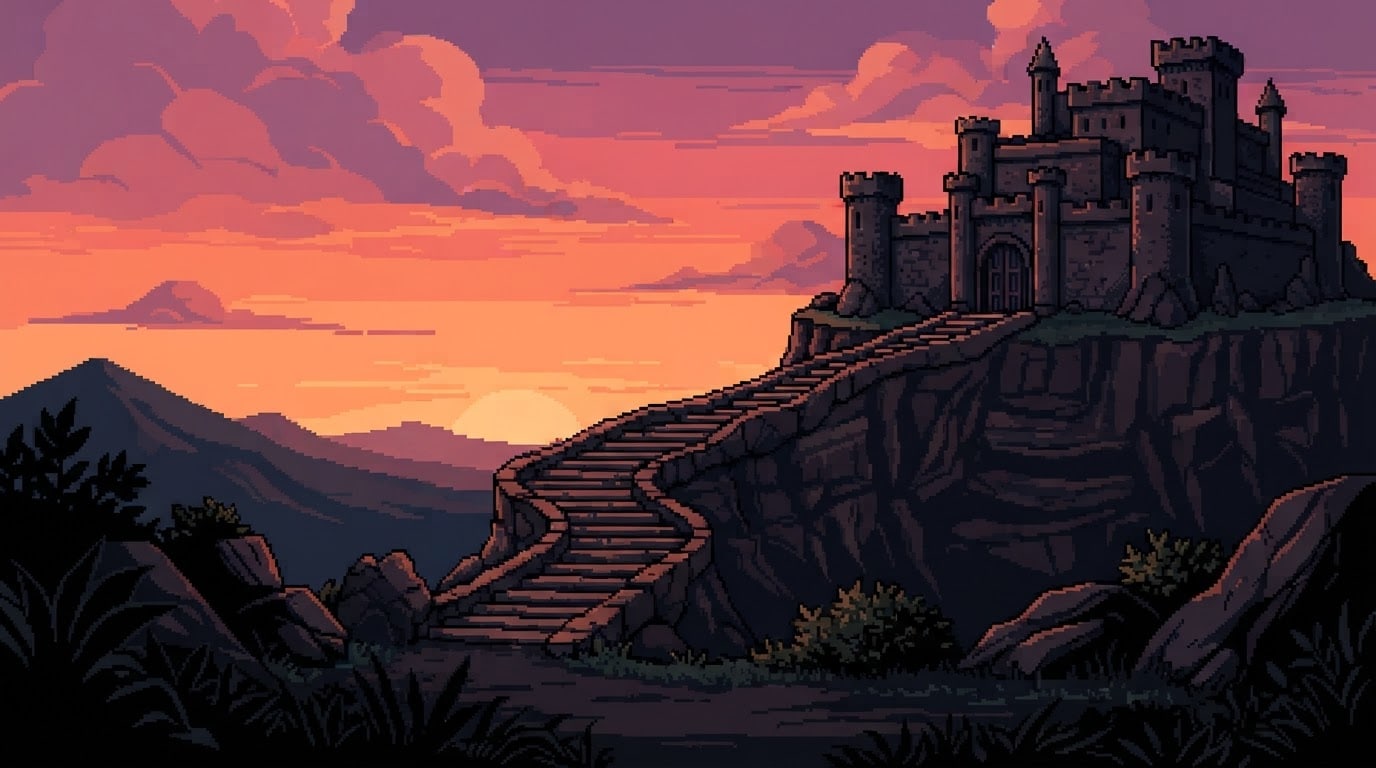
The pixel art illustration itself, made to be used as a retro game background: one full-bleed frame, completely free of text. Scene: an old castle on top of a cliff with stone stairs leading up to it. Layered setting: dark silhouettes of plants and rocks in the foreground, the main scene in the middle ground, fading distant hills and chunky pixel clouds behind. Light and color palette: sunset light; an orange, pink and purple sky with deep navy shadows. View: side-on, eye-level wide shot with flat perspective, like a side-scrolling platform game. Style: 16-bit console era pixel art with a limited palette and dithered shading. The pixels are clearly visible and square, edges crisp, shapes outlined in dark pixels, every pixel aligned to the grid. Composition: the main structure sits on the right third, the ground line on the lower third, with a wide, simple sky. Aspect ratio 16:9.
Image made with this prompt
What this prompt does
This prompt generates a text-free pixel art scene in the style of a side-scrolling platform game: dark silhouettes in front, the main structure in the middle, fading hills and chunky pixel clouds behind. You choose the scene, the light and a pixel style from 8-bit to modern. It suits anyone who needs a game background, a retro wallpaper or a cover image.
Where to use it
- Draft 2D game backgrounds
- Retro desktop wallpaper
- Stream or video thumbnails
- Community server banners
- Quick concepts for a game jam
- Vertical pixel art for phones
Fields you can fill in
The fields you can change in the form above and their default values.
- SceneOne of 6 options
- an old castle on top of a cliff with stone stairs leading up to it
- Light and colorOne of 5 options
- sunset light; an orange, pink and purple sky with deep navy shadows
- Pixel styleOne of 4 options
- 16-bit console era pixel art with a limited palette and dithered shading
- Aspect ratioOne of 4 options
- 16:9
Step by step
- 1
Choose the scene
Under Scene, pick the cliffside castle, the forest bridge, the snowy mountain village, the tropical beach, the city skyline or the red planet base. The prompt puts the main structure on the right third and the ground line on the lower third, leaving the left open for a character or title.
- 2
Set the light and palette
Light and color offers sunset, clear daylight, full moonlight, soft morning pastels and a flat monochrome palette of four greens. That last one recalls early handheld console screens and pairs well with the 8-bit style.
- 3
Pick the pixel style
Pixel style offers 16-bit with dithered shading, chunky 8-bit with few colors, detailed modern pixel art or a silhouette-driven look. For a game background, the silhouette style keeps the foreground simple so characters do not get lost in it.
- 4
Choose the ratio and the tool
Pick 16:9 for a widescreen game, 4:3 for an old-screen feel or 9:16 for a phone. Start takes the prompt to Entro Canvas, where you sign in, pick the ratio and style and generate; or Copy it into Gemini or ChatGPT.
- 5
Check the pixel grid
Zoom in and make sure the pixels stay square and crisp, with no blurry blends or half pixels. Some models imitate pixel art and soften the edges; if that happens, generate again or switch to the 8-bit style.
Tips and variations
- For parallax layers, generate the scene three times: sky and clouds only, distant hills only, foreground silhouettes only. After pasting, describe the other layers as “an empty, flat color background” each time.
- When you scale the image up in a game engine, use nearest neighbor instead of smooth scaling; otherwise the crisp pixel edges turn blurry.
- To leave room for a player character, add a line such as “flat, clear ground on the left half as open space for a character”; the scene then reads like a playable level.
- Generate the same Scene with each Light and color option to build a day cycle: pastel morning, daylight, sunset, moonlight. Use it for level transitions or a rotating wallpaper set.
Frequently asked questions
What is the difference between 8-bit and 16-bit pixel art?
In this prompt, 8-bit asks for very chunky pixels, few colors and simple shapes, while 16-bit uses a limited but wider palette with dithering, a dotted shading technique. 8-bit feels more iconic and plain; 16-bit gives a more detailed, shaded scene.
Can I use AI pixel art in my game?
It works as a background draft or concept, but models do not always align pixels perfectly to the grid. Before putting it in a game, scale it down to your target resolution in a pixel editor and limit the colors. Commercial use terms depend on the tool you generate with.
What if text or a game HUD shows up in the image?
The prompt asks for an image with no text, but models sometimes add things like a score bar or a title. If that happens, add “no interface, score, health bar or text” to the prompt and generate again.
Which tools does this pixel art prompt work in?
It is plain text, so you can Copy it into any tool that makes images from text, such as Gemini or ChatGPT. Start takes it to Entro Canvas, where you choose the ratio and style before generating.